← Threadline Chat video guides / வீடியோ வழிகாட்டிகள்
Plan a campaign and read what it earned
A campaign sends one approved template to a group of customers who agreed to marketing. This guide shows the totals page and the first two steps of the wizard.
The same steps as a short video with captions (about 1 minute, no sound). In the pictures below, the red boxes marked 1 2 3 show where to look.
1
Read the totals
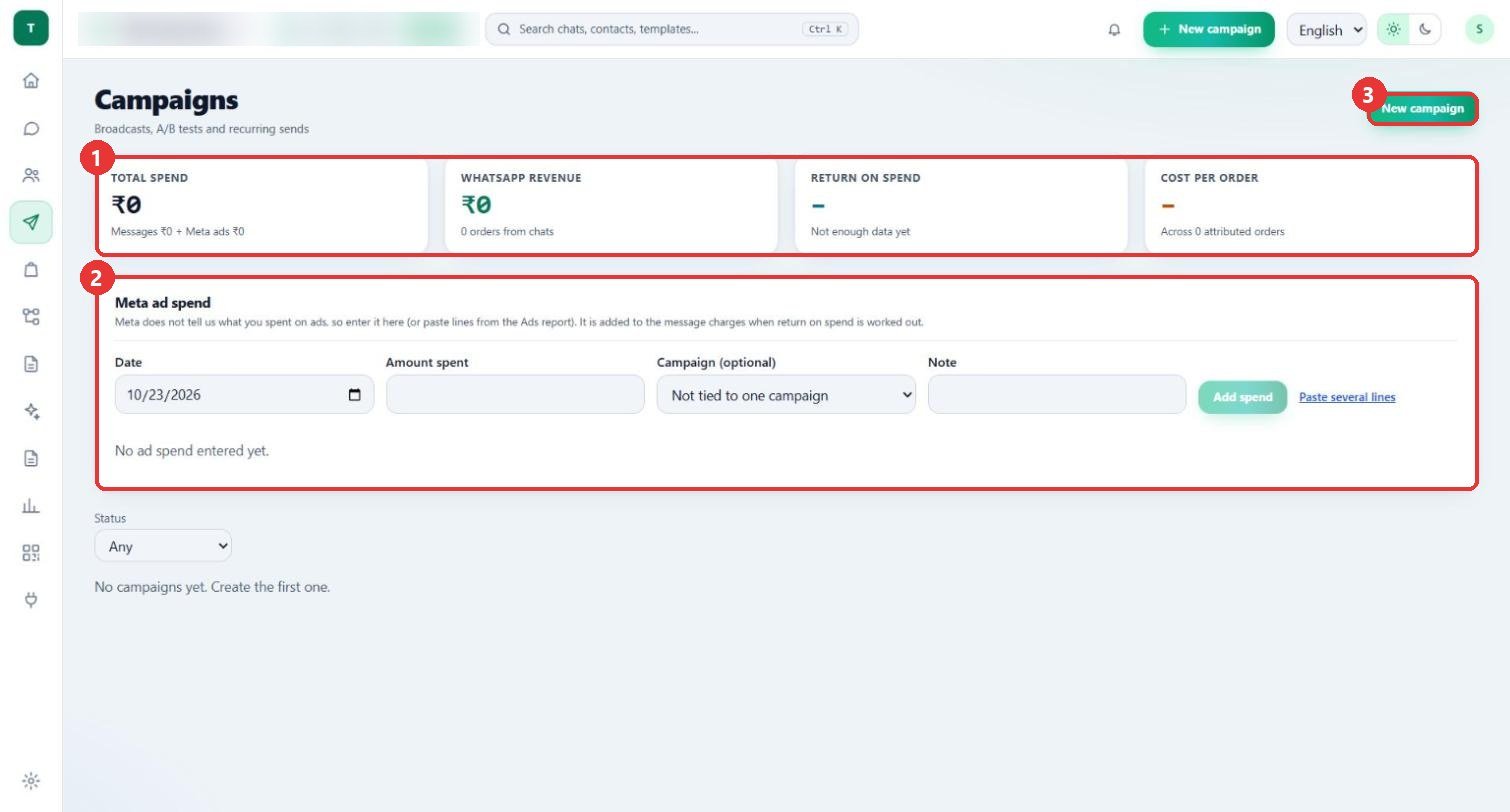
What to clickOpen Campaigns. The top shows Total spend, WhatsApp revenue, Return on spend and Cost per order. Press New campaign to start one.
WhyMeta does not tell you what you spent on ads, so you enter it under Meta ad spend. It is added to the message charges when return on spend is worked out.
Use caseEnter each week's ad spend so that Return on spend is true.
2
Name it and choose who gets it
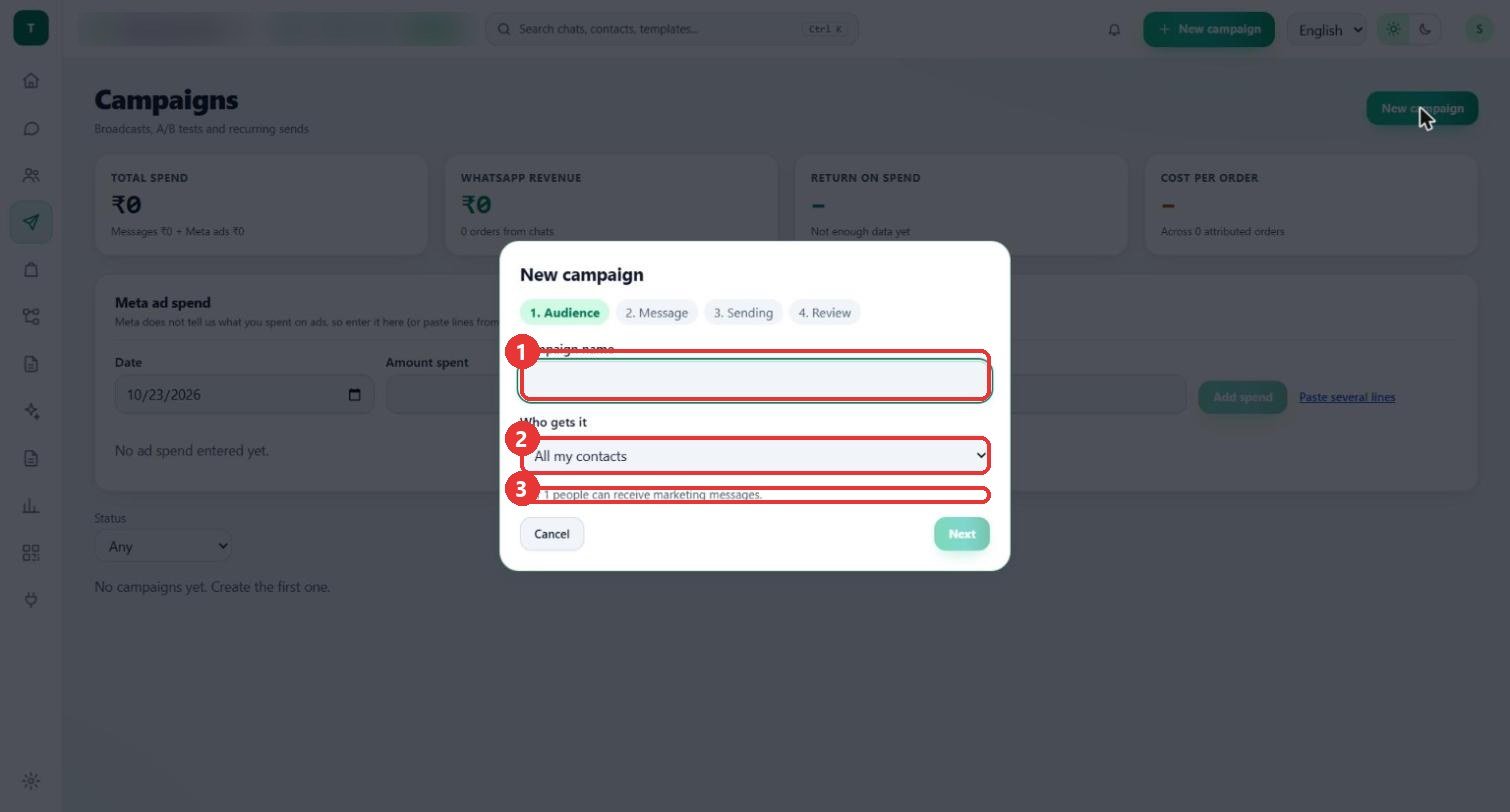
What to clickType a Campaign name. Under Who gets it choose All my contacts, A list or A segment. The line below says how many people can receive marketing messages (here "0 of 1").
WhyOnly people who agreed to marketing messages can receive a campaign, so the number can be smaller than your contacts.
Use caseSend a festival offer to a segment of past buyers.
3
Choose an approved template
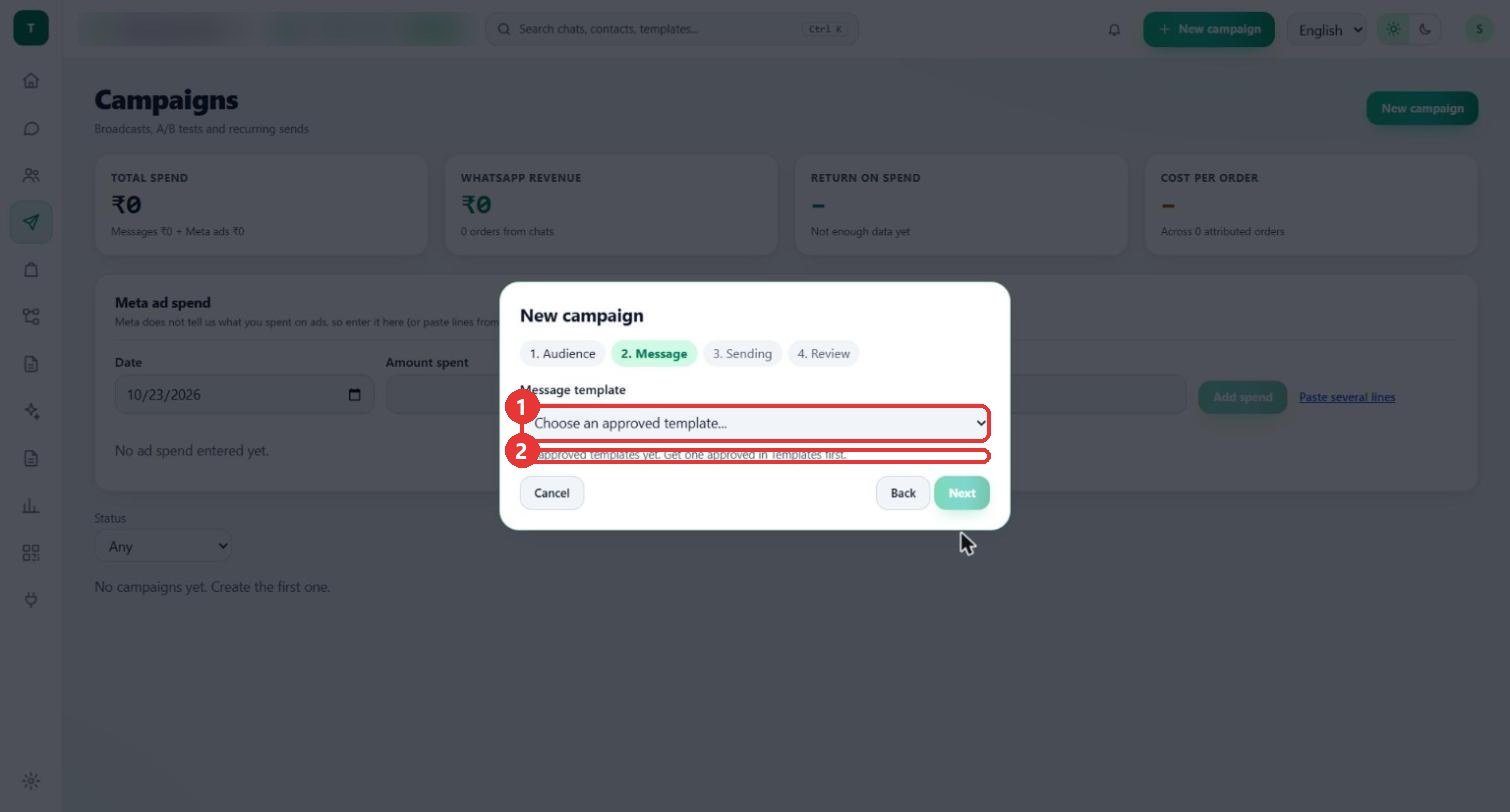
What to clickStep 2. Message asks for a Message template. Choose an approved one. If none is approved, the screen says "No approved templates yet. Get one approved in Templates first."
WhyA campaign goes out as a template, so the template has to be approved by Meta first.
Use caseWrite and submit the template (previous guide), wait for approval, then come back here.
Good to know
- Steps 3 (Sending) and 4 (Review) are not shown: this workspace has no approved template, so the wizard cannot go past step 2 without changing data. They are not drawn.
- Nothing was created: the wizard was cancelled, and the list still says "No campaigns yet."
- The workspace name and number in the top bar are blurred.