← Threadline Chat video guides / வீடியோ வழிகாட்டிகள்
Write a template and check it before Meta sees it
A template is the message you may send outside the 24-hour window. Threadline checks it as you type, so Meta is less likely to refuse it. About five minutes.
The same steps as a short video with captions (about 1 minute, no sound). In the pictures below, the red boxes marked 1 2 3 show where to look.
1
Start a new template
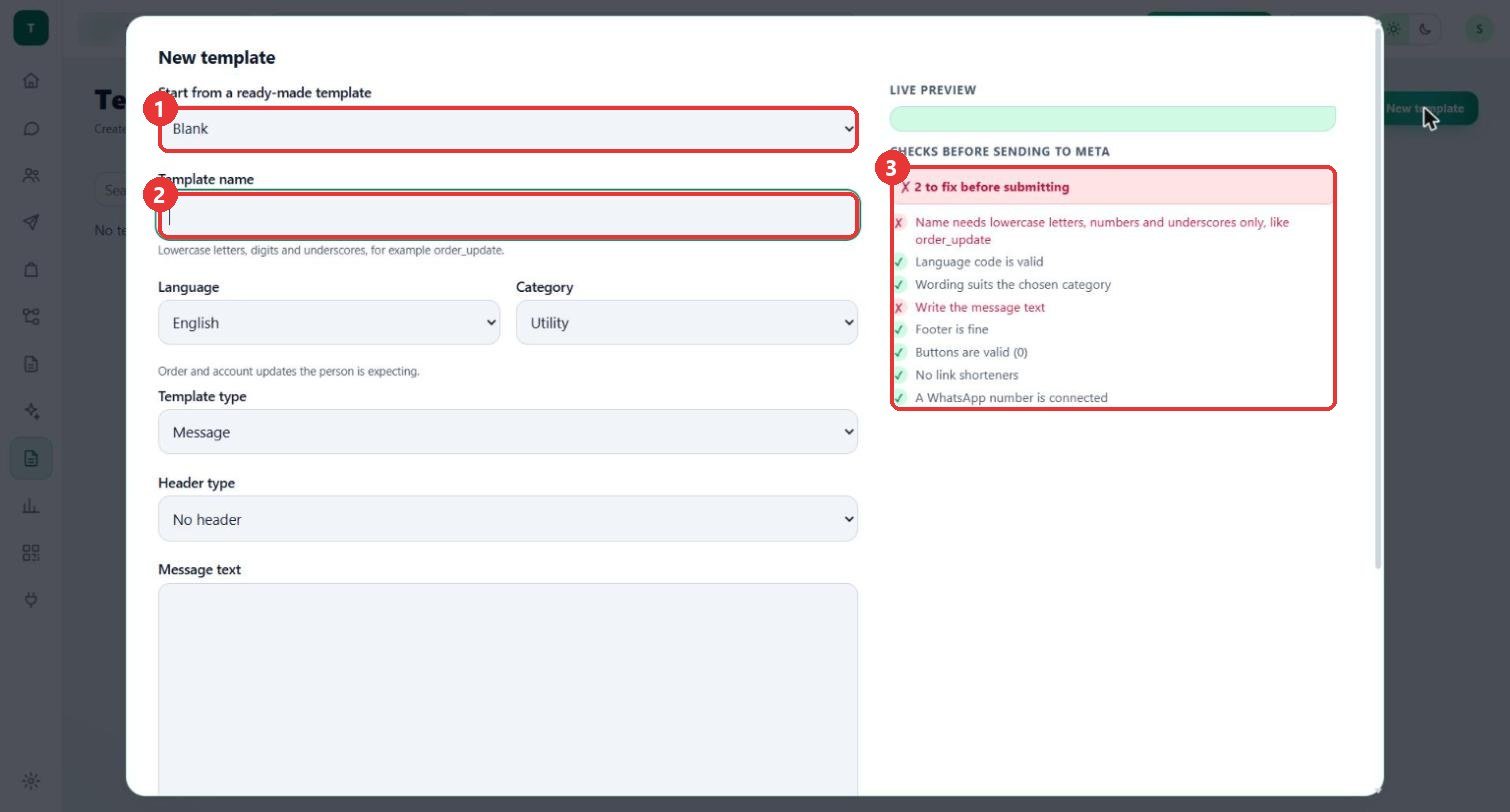
What to clickOpen Templates and press New template. Start from a ready-made template or leave Blank. Type the Template name: lowercase letters, digits and underscores, for example order_update.
WhyMeta needs the name in this form. The list on the right, Checks before sending to Meta, turns green or red as you type.
Use caseorder_shipped for a dispatch message.
2
Language, category and header
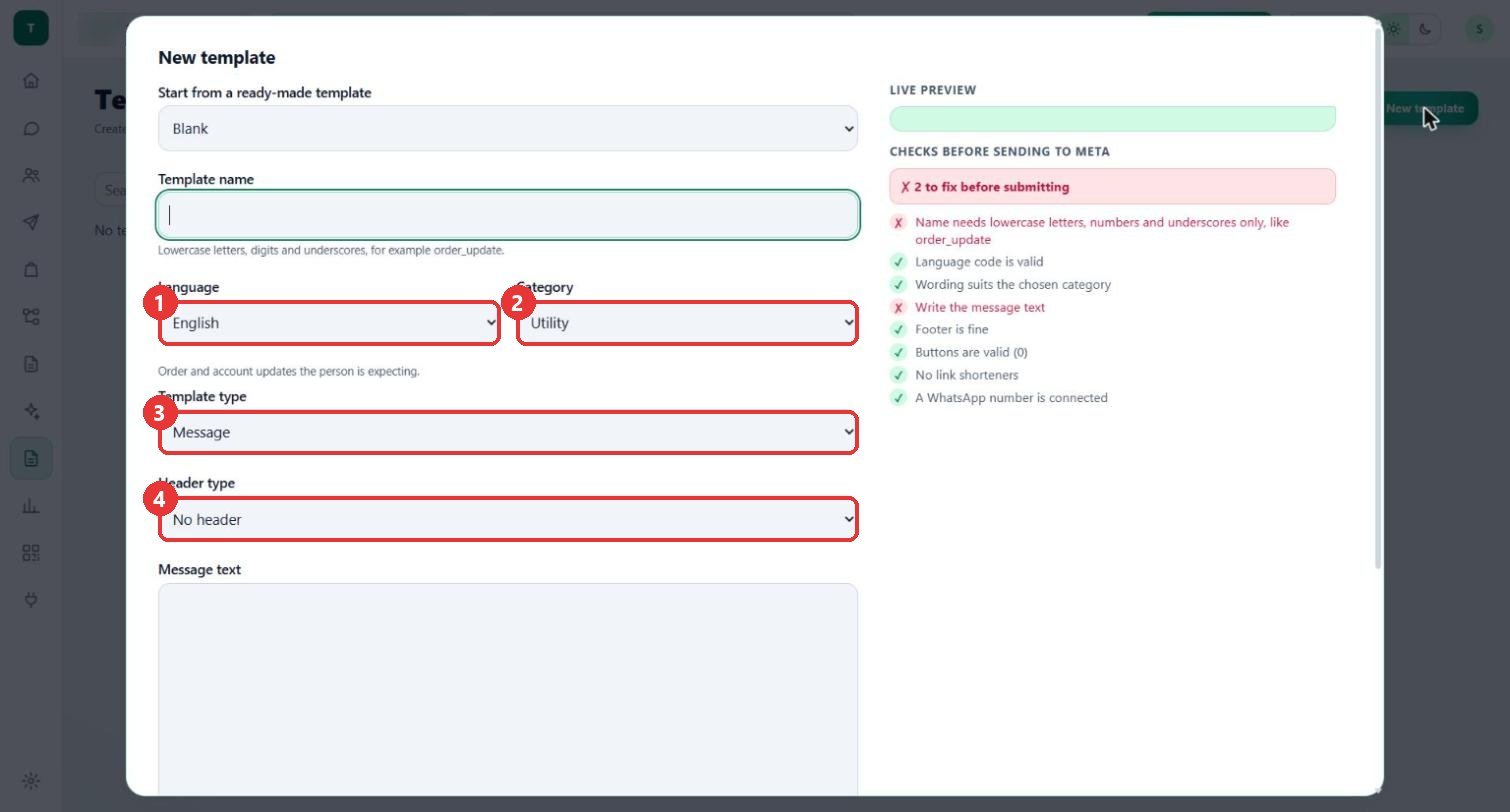
What to clickChoose the Language and the Category (here Utility: "Order and account updates the person is expecting"). Template type is Message; Header type can add a header.
WhyThe category says what the message is for, and the check "Wording suits the chosen category" tests your text against it.
Use caseOrder and shipping messages are Utility. Offers are Marketing.
3
Write the message
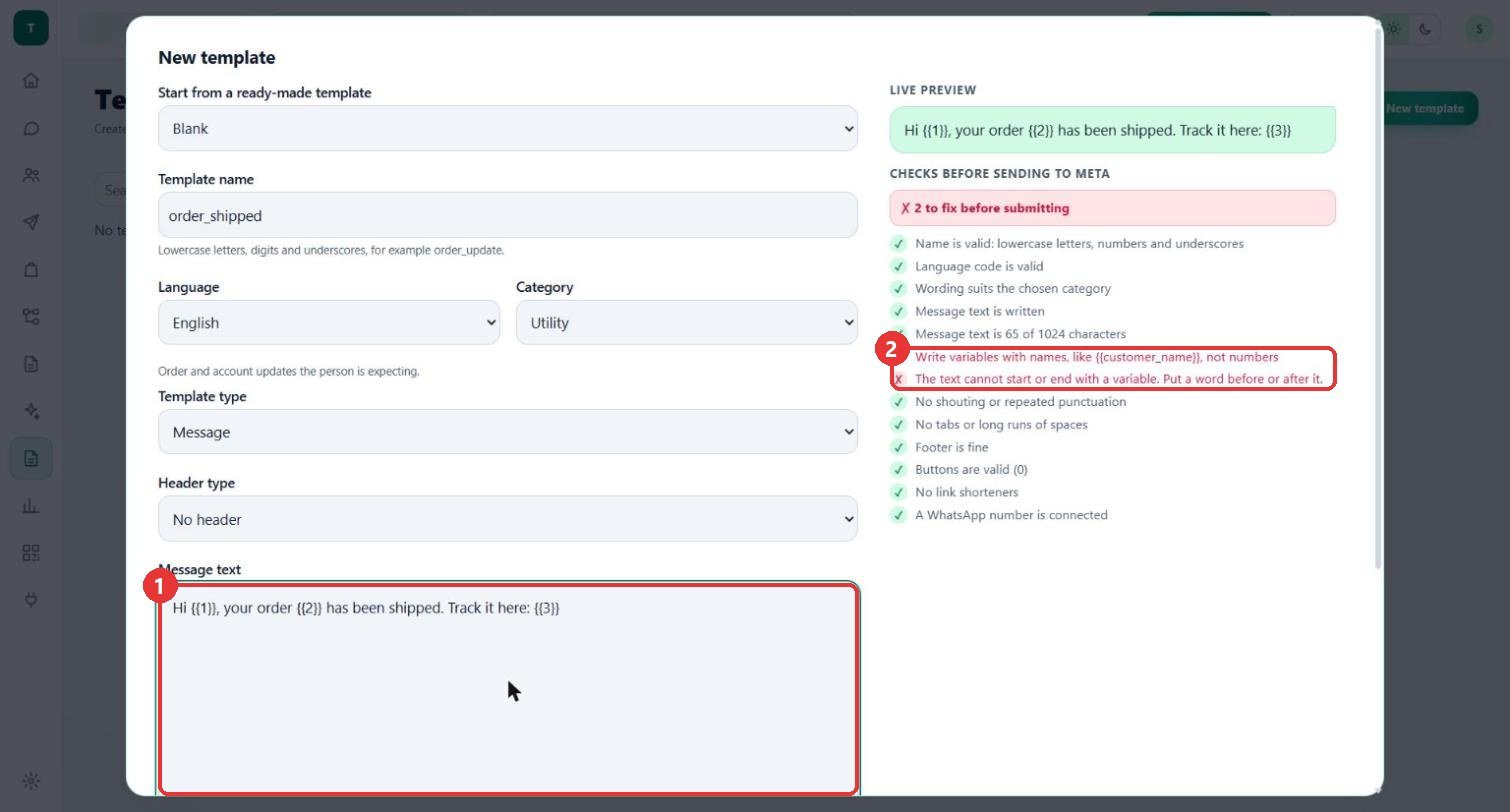
What to clickType the Message text and put each variable in double curly braces. Numbers such as {{1}} are refused: the checks say "Write variables with names, like {{customer_name}}, not numbers" and "The text cannot start or end with a variable".
WhyThe checks catch what Meta would refuse, before you submit.
Use case"Hi {{1}}, your order {{2}} has been shipped. Track it here: {{3}}" fails both checks.
4
Fix it until the checks pass
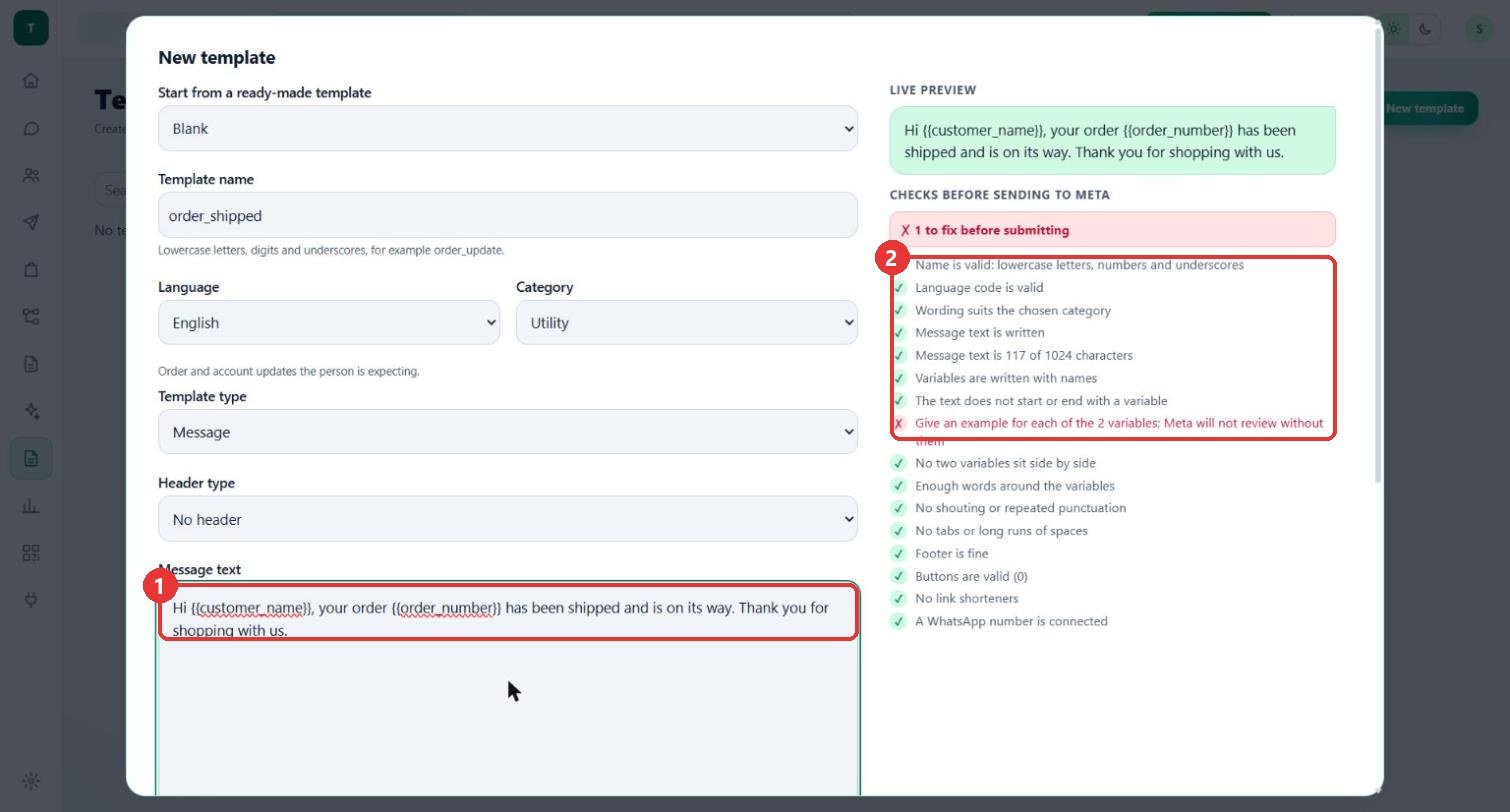
What to clickUse names such as {{customer_name}} and {{order_number}} and end the text with a sentence. The list now says Variables are written with names. One red check is left: an example for each variable.
WhyMeta will not review a template without an example for each variable.
Use case"Hi {{customer_name}}, your order {{order_number}} has been shipped and is on its way. Thank you for shopping with us."
5
Examples, buttons and save
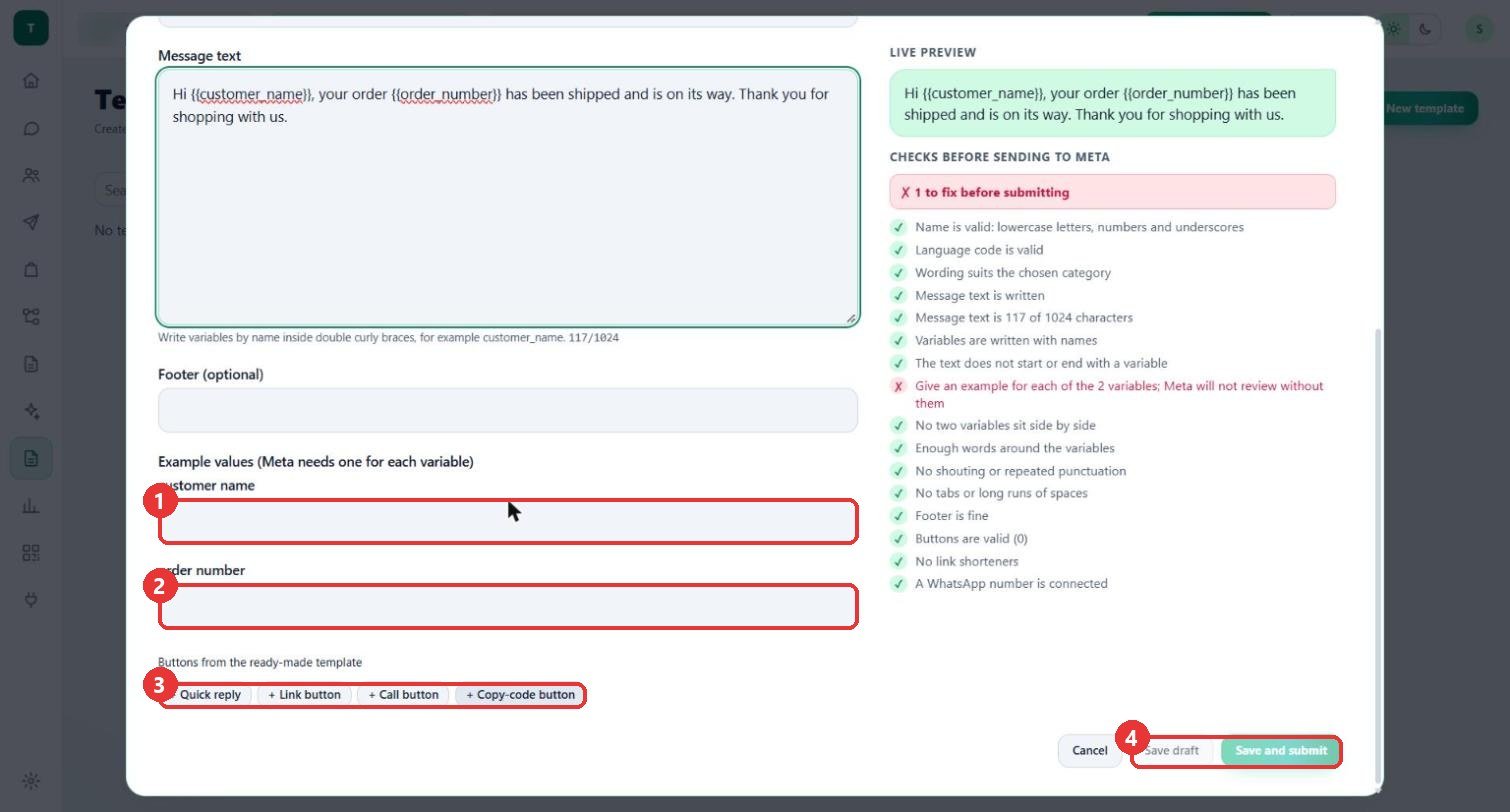
What to clickType an example under Example values for each variable. Add buttons if you need them: Quick reply, Link button, Call button or Copy-code button. Save draft keeps it here. Save and submit sends it to Meta.
WhyMeta reviews the template and its status shows in the list. Only approved templates can be sent in chats and campaigns.
Use caseExamples: Priya for the name, 1024 for the order number.
Good to know
- Nothing was saved or submitted to make this guide: the sample name and text were typed and then the form was cancelled. The list still says "No templates match."
- The workspace name and number in the top bar are blurred.
- The list page also has a Sync from Meta button; it was not pressed.