← Threadline Chat video guides / வீடியோ வழிகாட்டிகள்
Build an automatic reply flow
A flow answers a customer by itself when a message matches words you choose. You can try it safely before it goes live. About five minutes.
The same steps as a short video with captions (about 1 minute, no sound). In the pictures below, the red boxes marked 1 2 3 show where to look.
1
See your automations
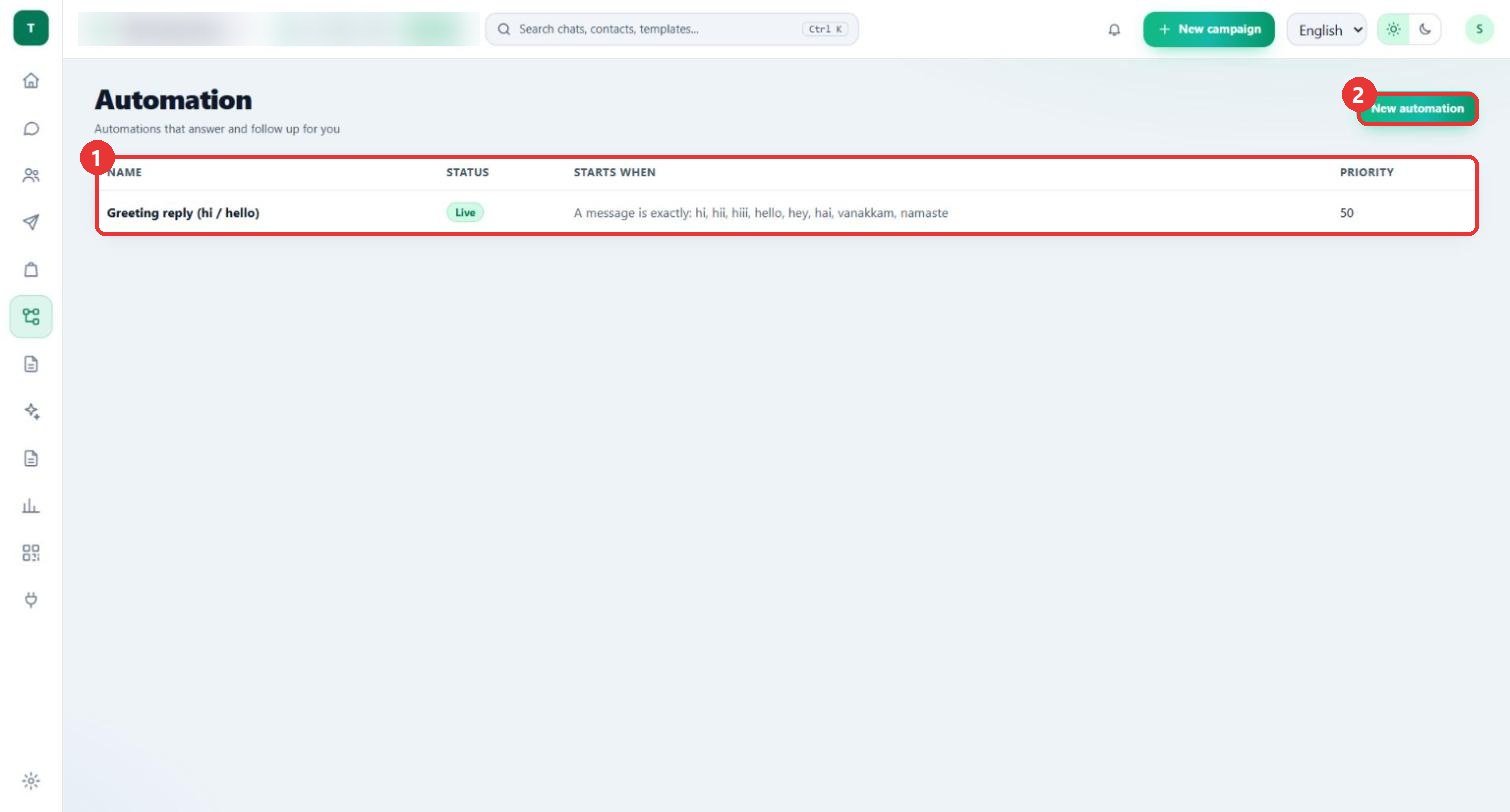
What to clickOpen Automation. Each row shows the Name, the Status, Starts when and Priority. Press New automation to add one.
WhyThis row starts when a message is exactly one of: hi, hii, hiii, hello, hey, hai, vanakkam, namaste. Live means customers get it now.
Use caseA greeting flow answers everyone who just says hi.
2
Start from a ready-made automation
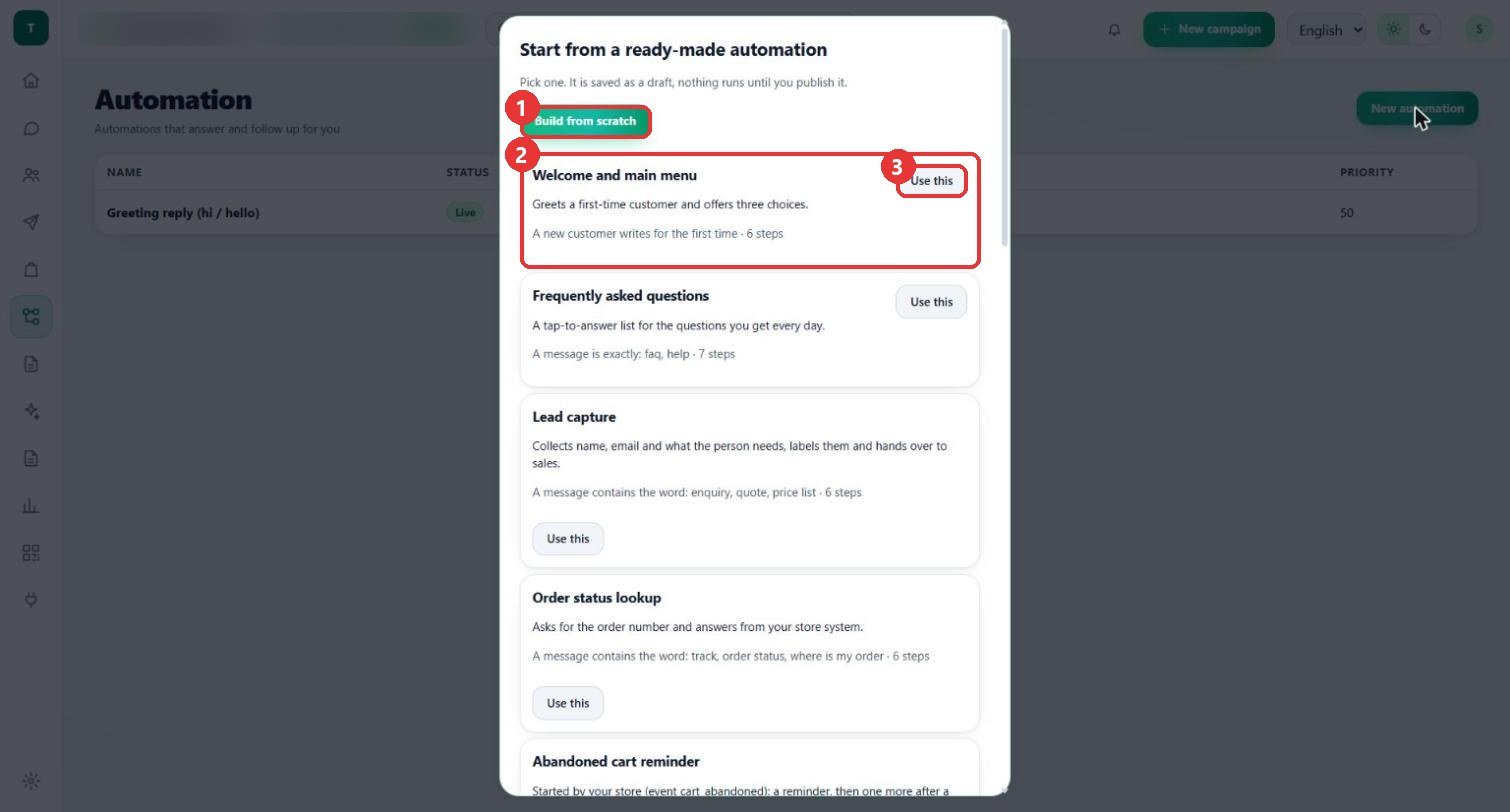
What to clickPick a ready-made one, such as Welcome and main menu, Frequently asked questions, Lead capture, Order status lookup or Abandoned cart reminder, and press Use this. Or press Build from scratch.
WhyThe screen says it is saved as a draft and nothing runs until you publish it.
Use caseA shop that gets "where is my order" messages starts from Order status lookup.
3
Set when it starts and what it sends
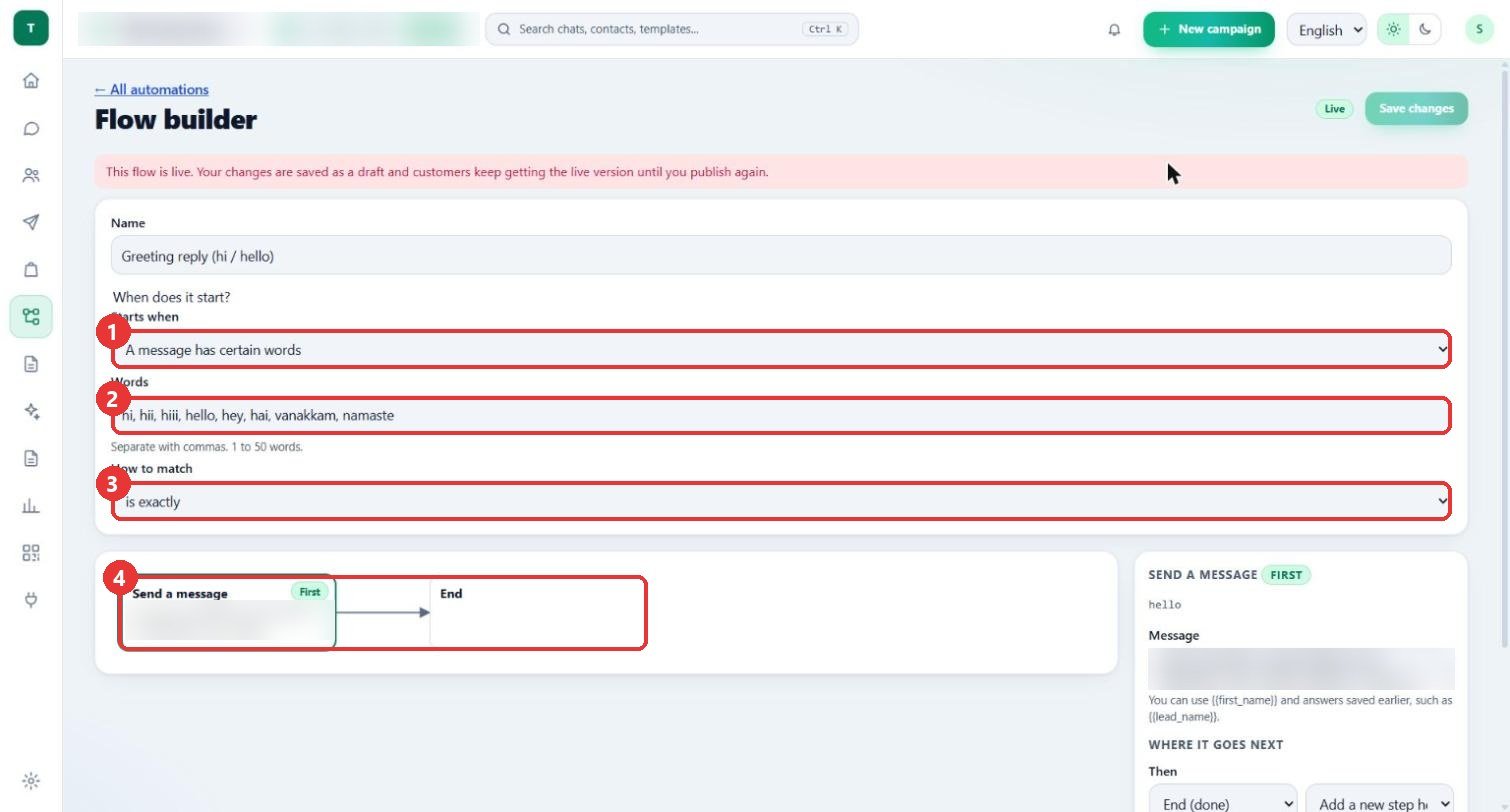
What to clickIn the Flow builder choose Starts when (here A message has certain words). Type the Words separated by commas (1 to 50). Choose How to match, here is exactly. Each box below is a step, for example Send a message then End.
WhyA live flow is safe to edit: "Your changes are saved as a draft and customers keep getting the live version until you publish again."
Use caseWords: hi, hello, vanakkam. Message: a short welcome that uses the customer's first name.
4
Try it before customers do
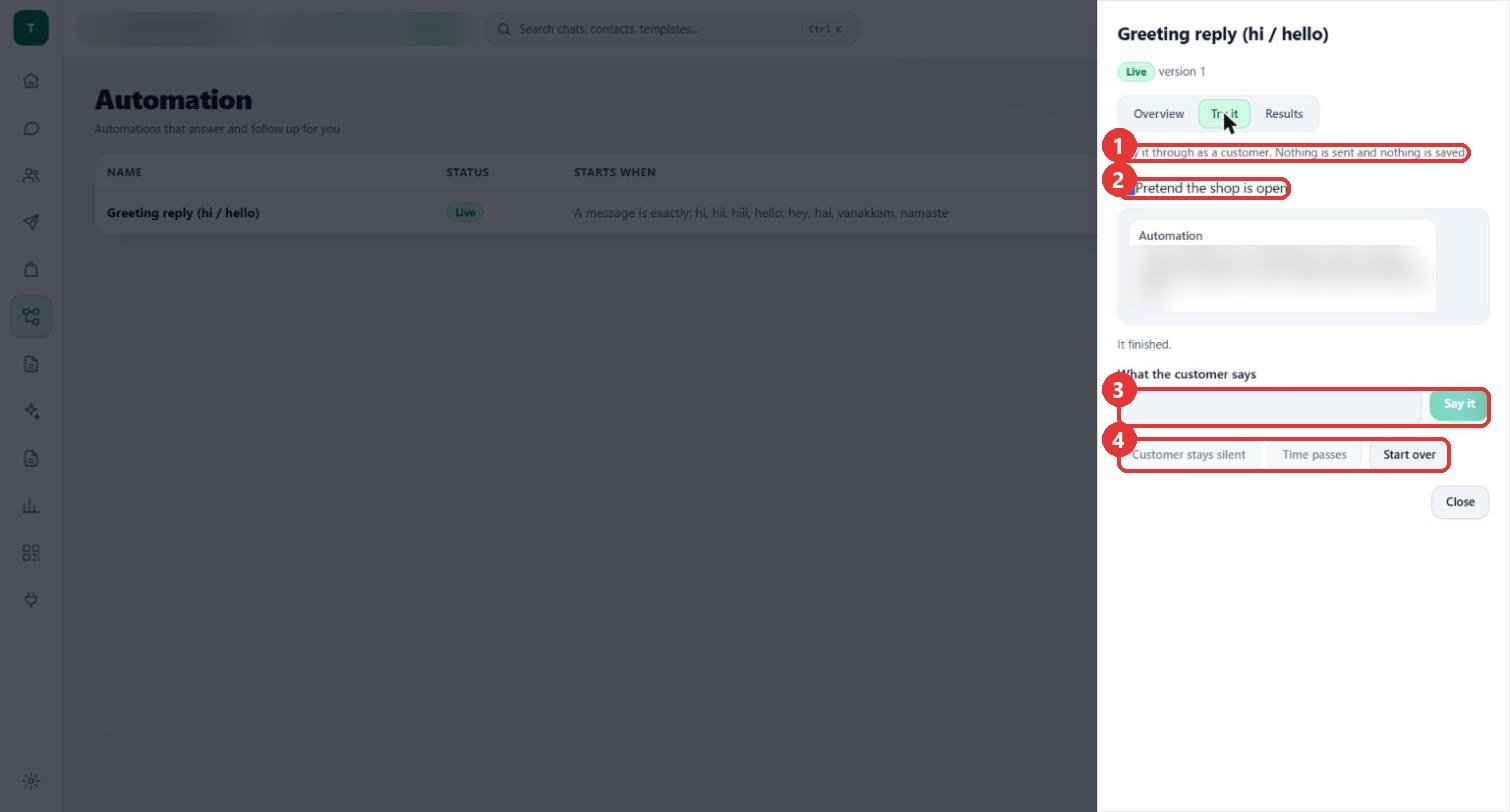
What to clickOpen the automation and press Try it. Type what a customer would say under What the customer says and press Say it. Customer stays silent, Time passes and Start over help you test waits.
Why"Play it through as a customer. Nothing is sent and nothing is saved." Pretend the shop is open tests the open-hours path.
Use caseSay "hi" and check that the greeting reads well.
5
Check it is ready
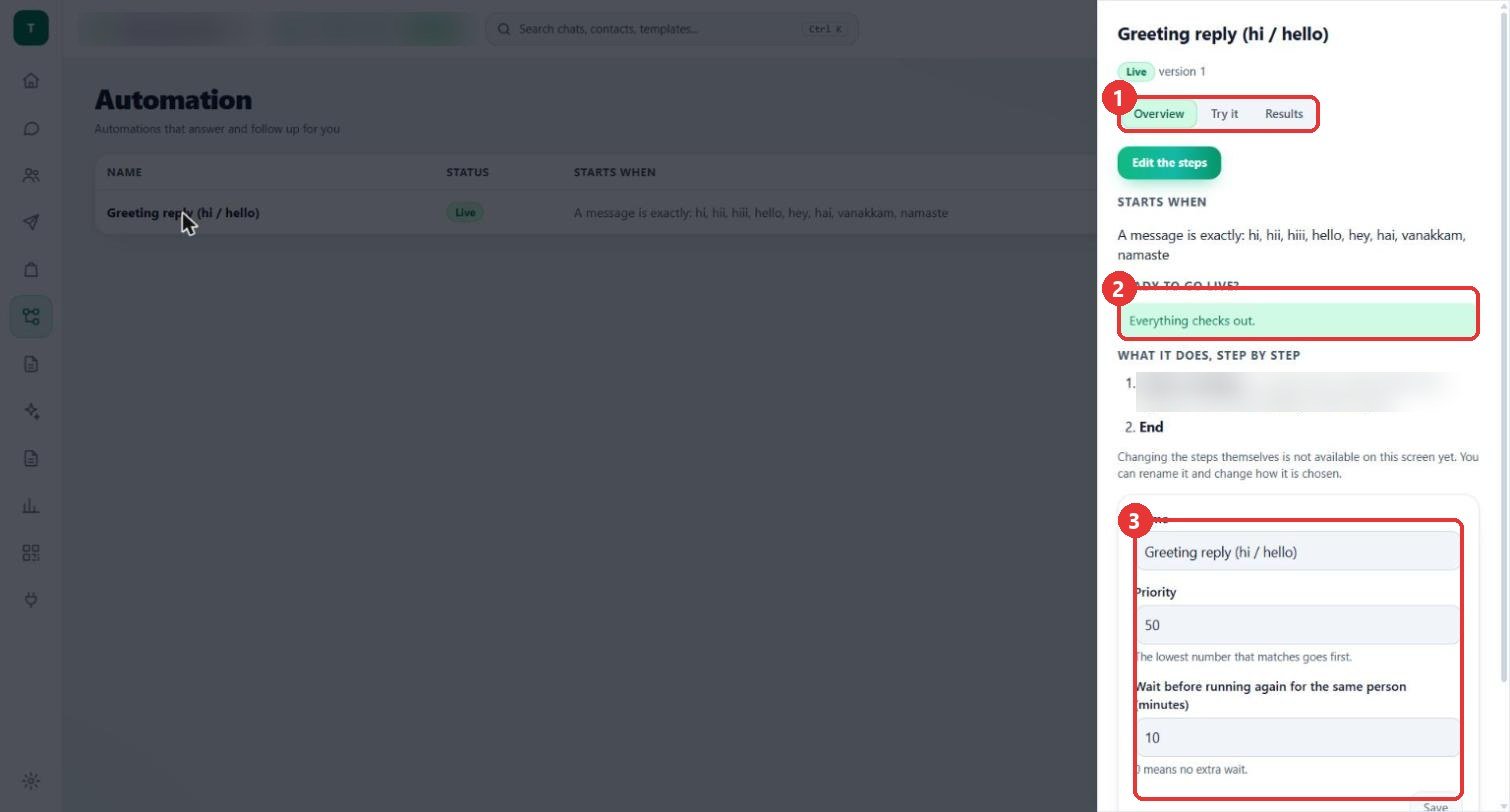
What to clickIn the Overview tab, Ready to go live? should say "Everything checks out". Below, set the Priority and Wait before running again for the same person (minutes). The Results tab shows how it performed.
WhyThe lowest priority number matches first. The wait is the gap before the same person can start this flow again; 0 means no extra wait.
Use caseGive a general greeting a larger number than a specific flow, so the specific flow goes first.
Good to know
- The shop name inside the greeting text is blurred in these pictures.
- Nothing was created or saved: the New automation dialog was closed without choosing anything, and the flow was opened but not changed.
- Try it never sends a message; it only plays the flow on the screen.