← Threadline Chat video guides / வீடியோ வழிகாட்டிகள்
Connect your WhatsApp number and check its health
Link your business number to Threadline with your Facebook login, then read its quality, its daily limit and today's messages. About five minutes.
The same steps as a short video with captions (about 1 minute, no sound). In the pictures below, the red boxes marked 1 2 3 show where to look.
1
Connect with Facebook
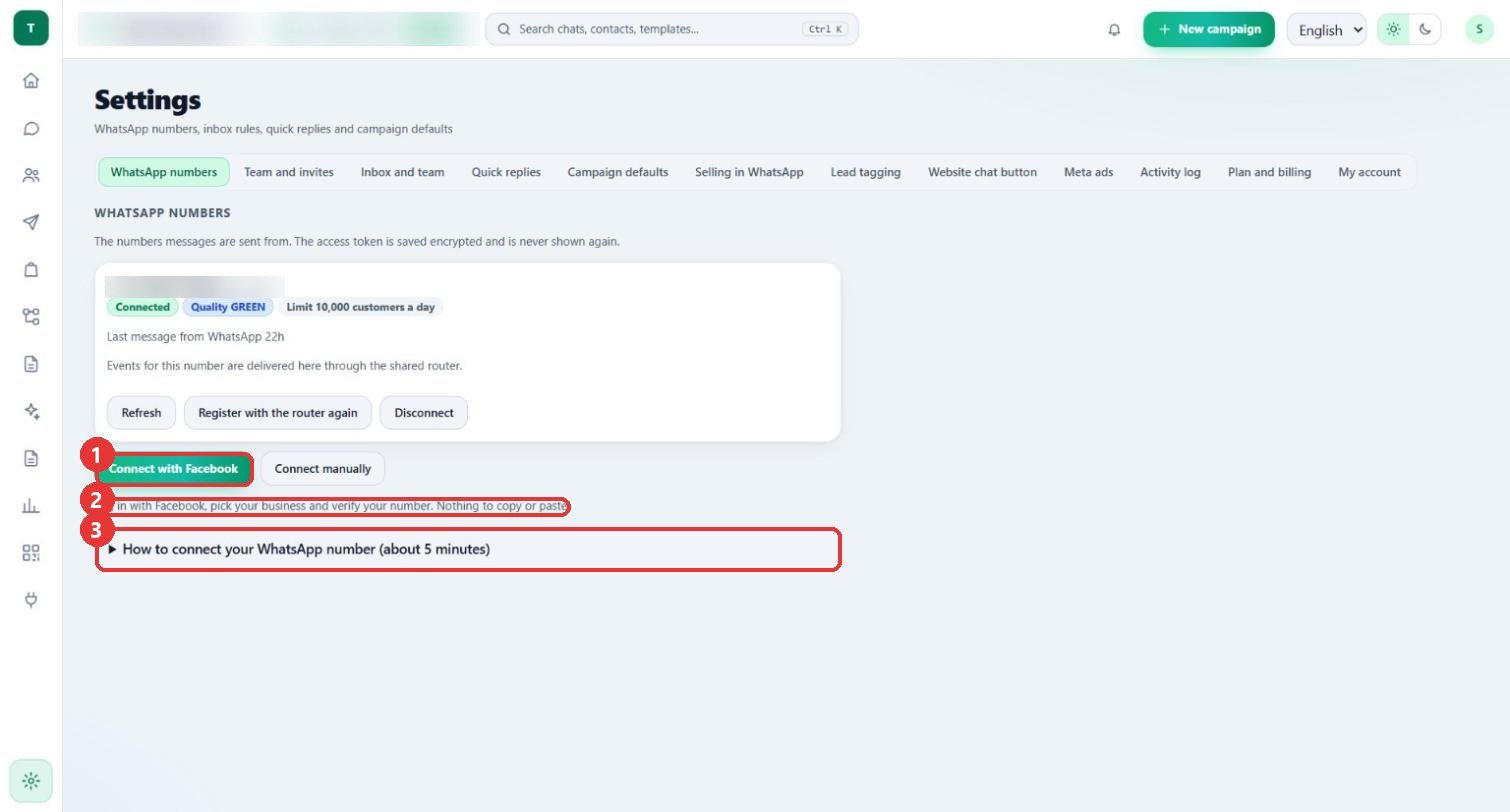
What to clickOpen Settings > WhatsApp numbers and press Connect with Facebook. Log in with Facebook, pick your business and verify your number.
WhyYou log in once and Threadline gets the number from WhatsApp, so there is nothing to copy or paste. How to connect your WhatsApp number (about 5 minutes) opens the written steps.
Use caseA shop owner who manages the shop's Facebook business connects the number in one visit, without a developer.
2
Read the number card
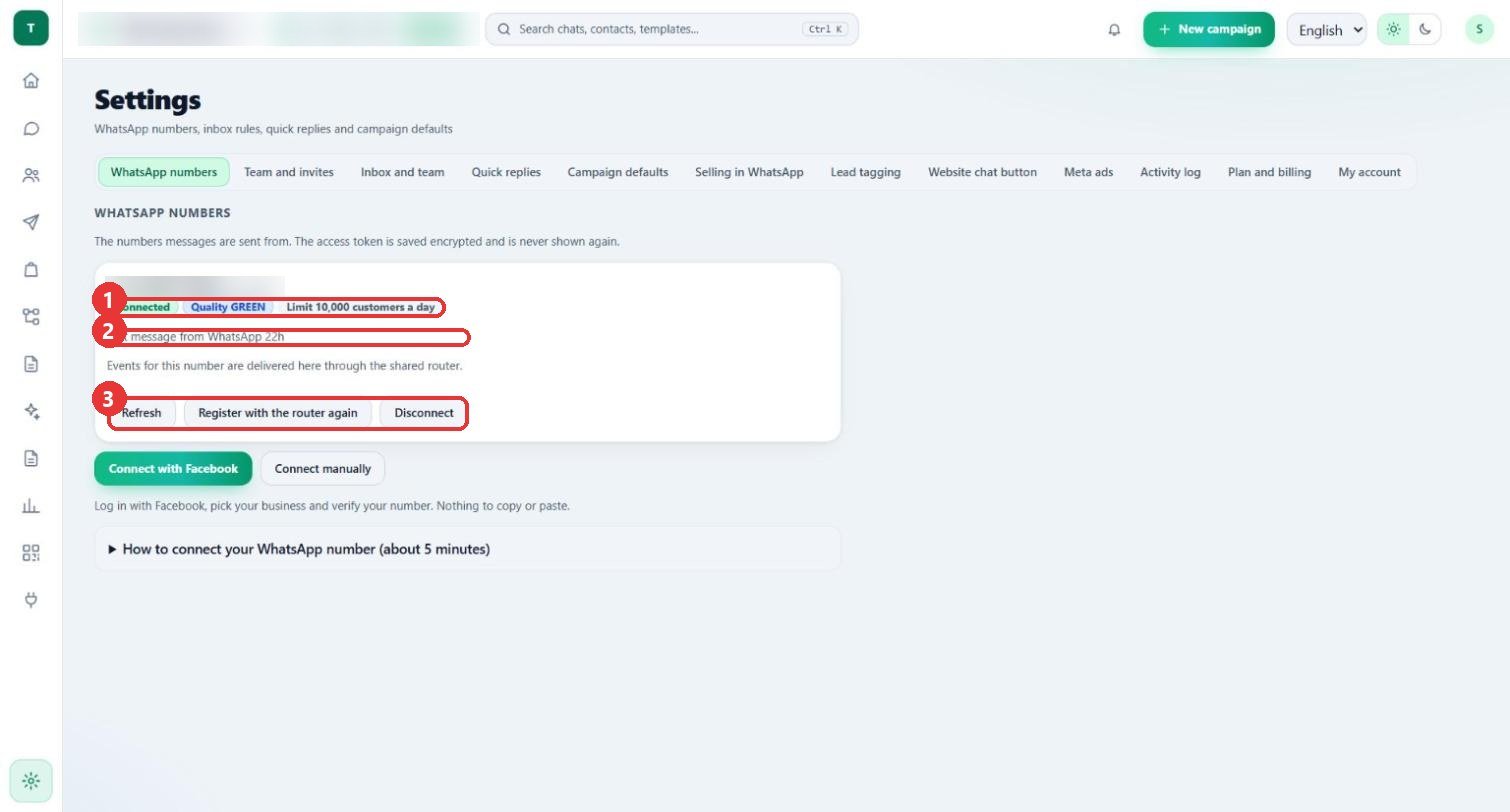
What to clickA connected number shows Connected, a Quality colour and its daily Limit. Press Refresh to ask WhatsApp for the latest.
WhyThe limit is how many different customers you may start chats with each day, and limits grow when quality stays good. After a successful refresh the screen says "Quality and limit updated from WhatsApp."
Use casePress Refresh before a campaign to see that the quality is still green.
3
Or connect manually
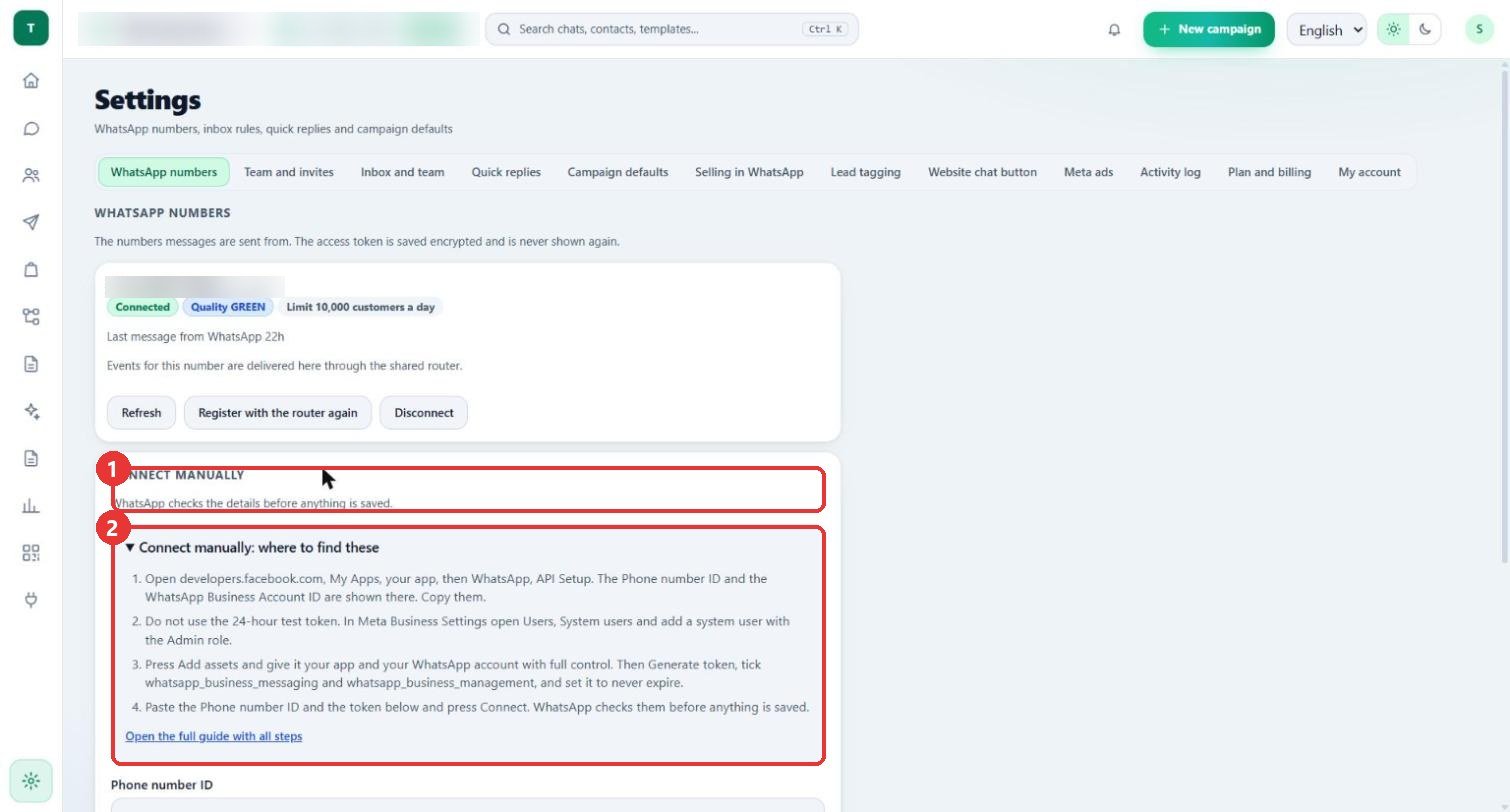
What to clickPress Connect manually. Above the form, read Connect manually: where to find these.
WhyIt says where the Phone number ID is (your Meta app, WhatsApp, API Setup) and how to make a token that does not expire (Business Settings, System users). It tells you not to use the 24-hour test token.
Use caseAn agency connects a client's number when the client cannot log in with Facebook.
4
Fill in the details
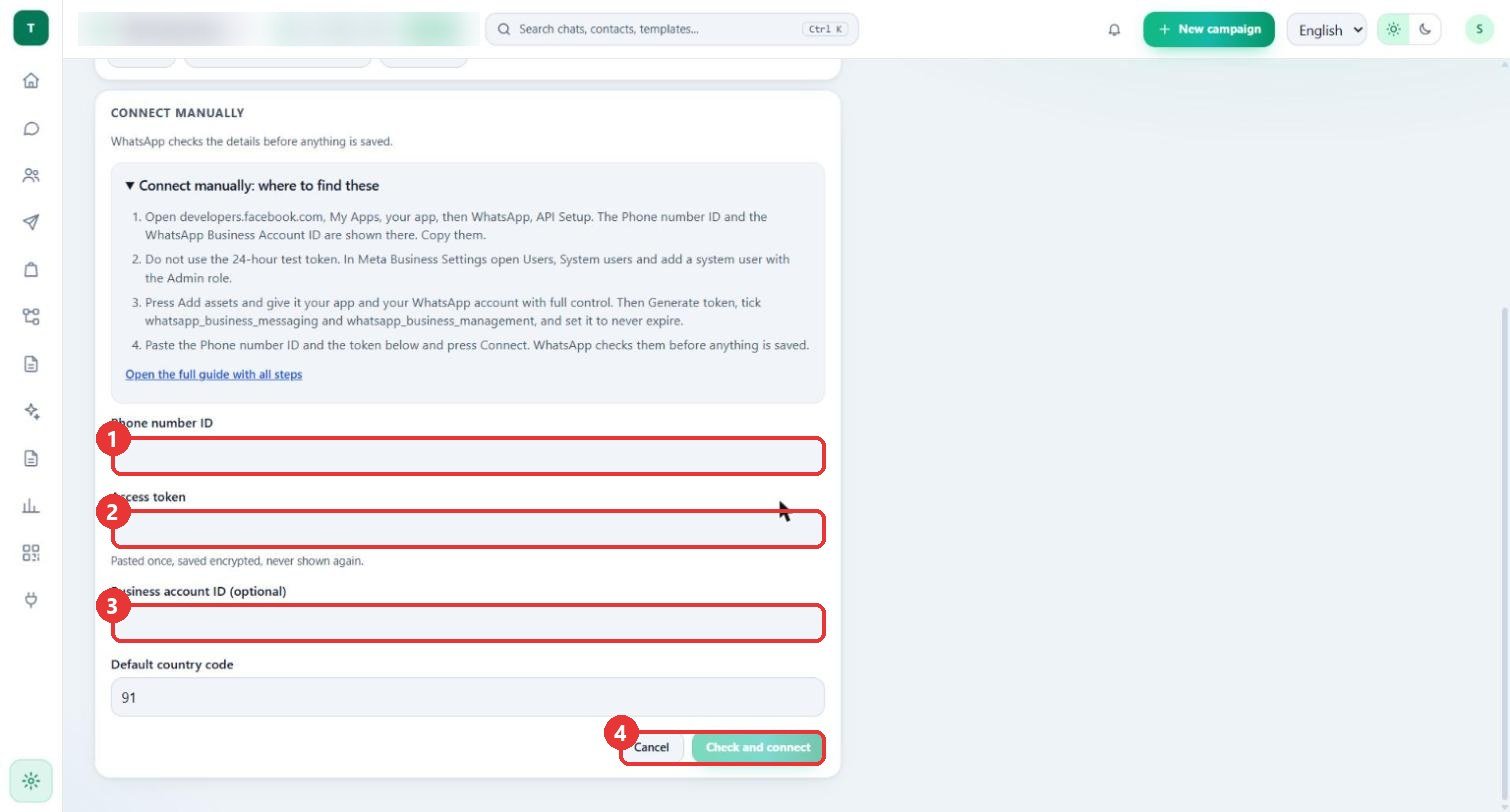
What to clickType the Phone number ID and paste the Access token. Business account ID is optional. Keep Default country code as 91 for India and press Check and connect.
WhyWhatsApp checks the details before anything is saved. The token is saved encrypted and never shown again.
Use caseKeep the token in your own safe records too, because Threadline cannot show it again.
5
Check the number on the Dashboard
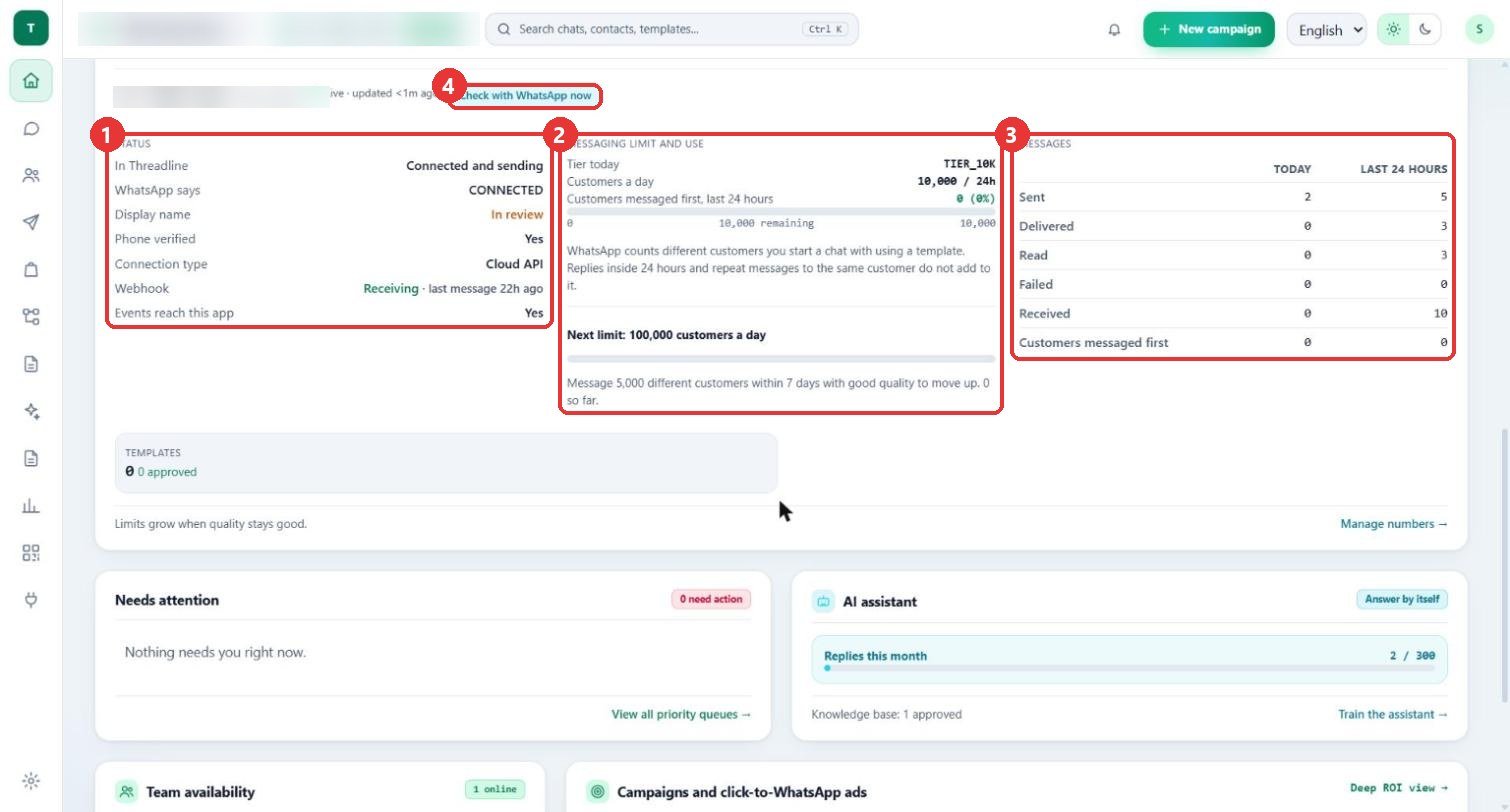
What to clickOpen Dashboard and scroll to the number card. Left: Status. Middle: Messaging limit and use. Right: Messages, today and in the last 24 hours. Check with WhatsApp now fetches fresh numbers.
WhyOne place shows whether the number can send, how many different customers you may start chats with today, and what happened to your messages.
Use caseBefore a campaign, check that the day's limit has room (here 10,000 customers a day).
Good to know
- In these pictures the number, the display name and the workspace name are blurred.
- Nothing was connected or changed to make this guide: the manual form was opened and then cancelled.
- If a number does not show as Connected, press Refresh once and read the lines under it.