← Threadline Chat video guides / வீடியோ வழிகாட்டிகள்
Answer customers in the shared Inbox
Find a chat, read its status, reply, leave a private note for your team and mark it solved. About three minutes.
The same steps as a short video with captions (about 1 minute, no sound). In the pictures below, the red boxes marked 1 2 3 show where to look.
1
Find the chat
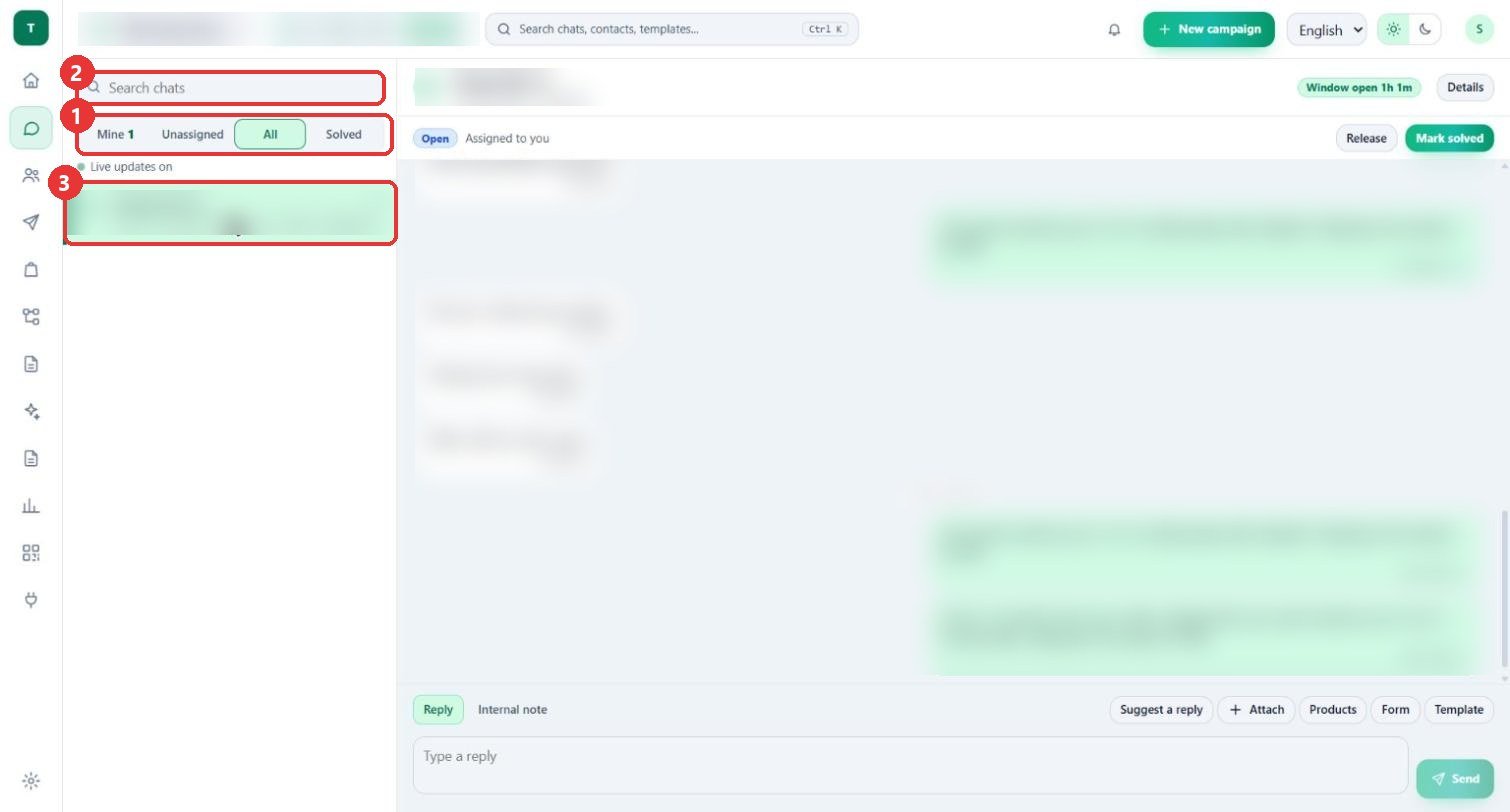
What to clickOpen Inbox. Use the tabs Mine, Unassigned, All and Solved, or type in Search chats. Press a chat to open it.
WhyThe number beside a tab counts the chats in it. Live updates on means new messages appear without refreshing the page.
Use caseIn the morning start with Unassigned and take the chats nobody has.
2
Read the status and the window
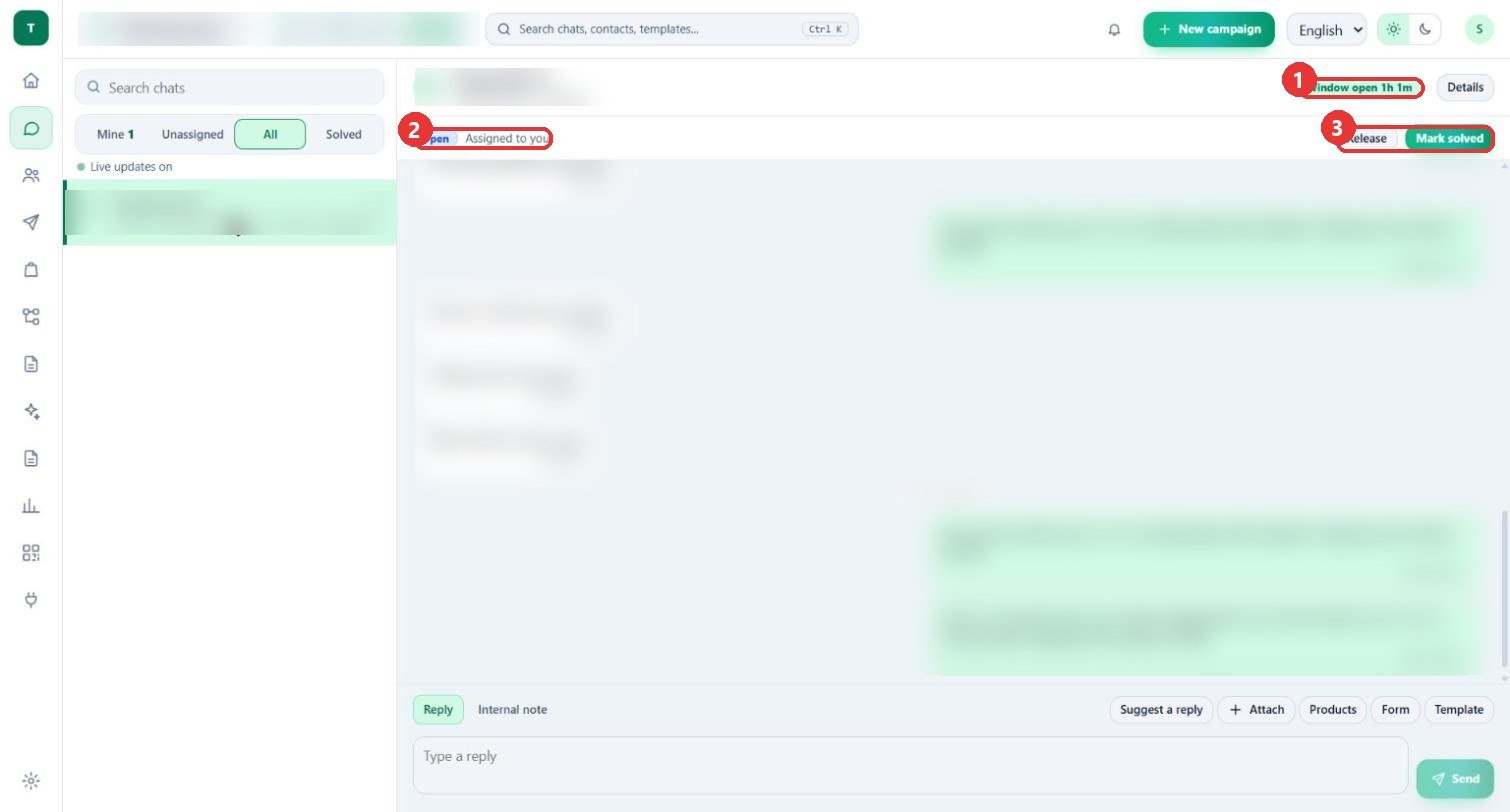
What to clickThe top of the chat shows Window open 1h 1m, the status (Open), who has it (Assigned to you) and the buttons Release and Mark solved.
WhyThe 24-hour window is the time you can send an ordinary reply. When it is closed, only an approved template can start the chat again.
Use caseAnswer the chats whose window is nearly over first.
3
Reply
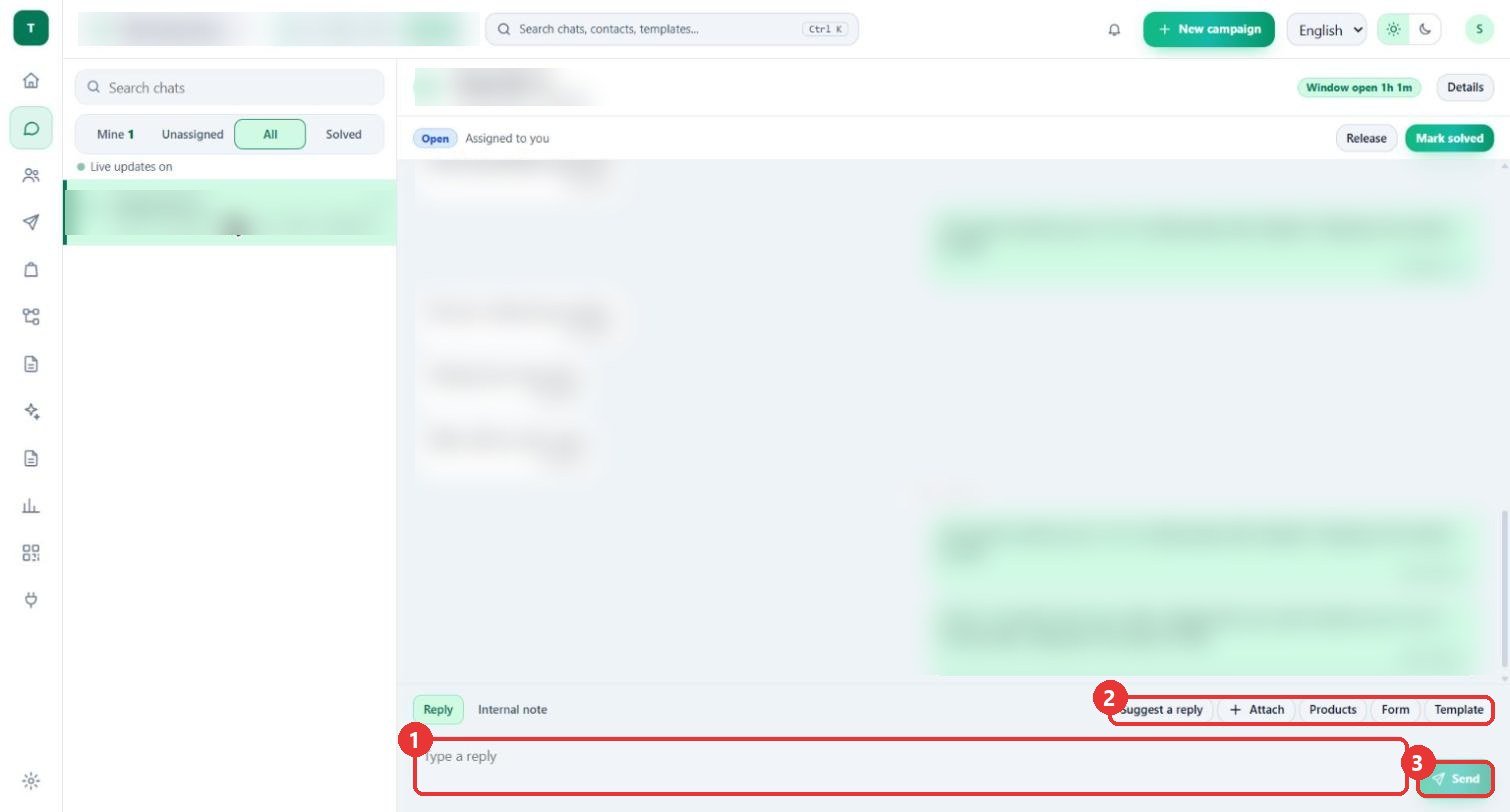
What to clickType in Type a reply and press Send. The buttons above add more: Suggest a reply, Attach (a photo or file), Products, Form and Template.
WhyTemplate sends an approved template. Products adds shop products to the reply. A suggested reply is a draft for you to check before you send it.
Use caseA customer asks about delivery: press Suggest a reply, read the draft, change a word and send.
4
Leave an internal note
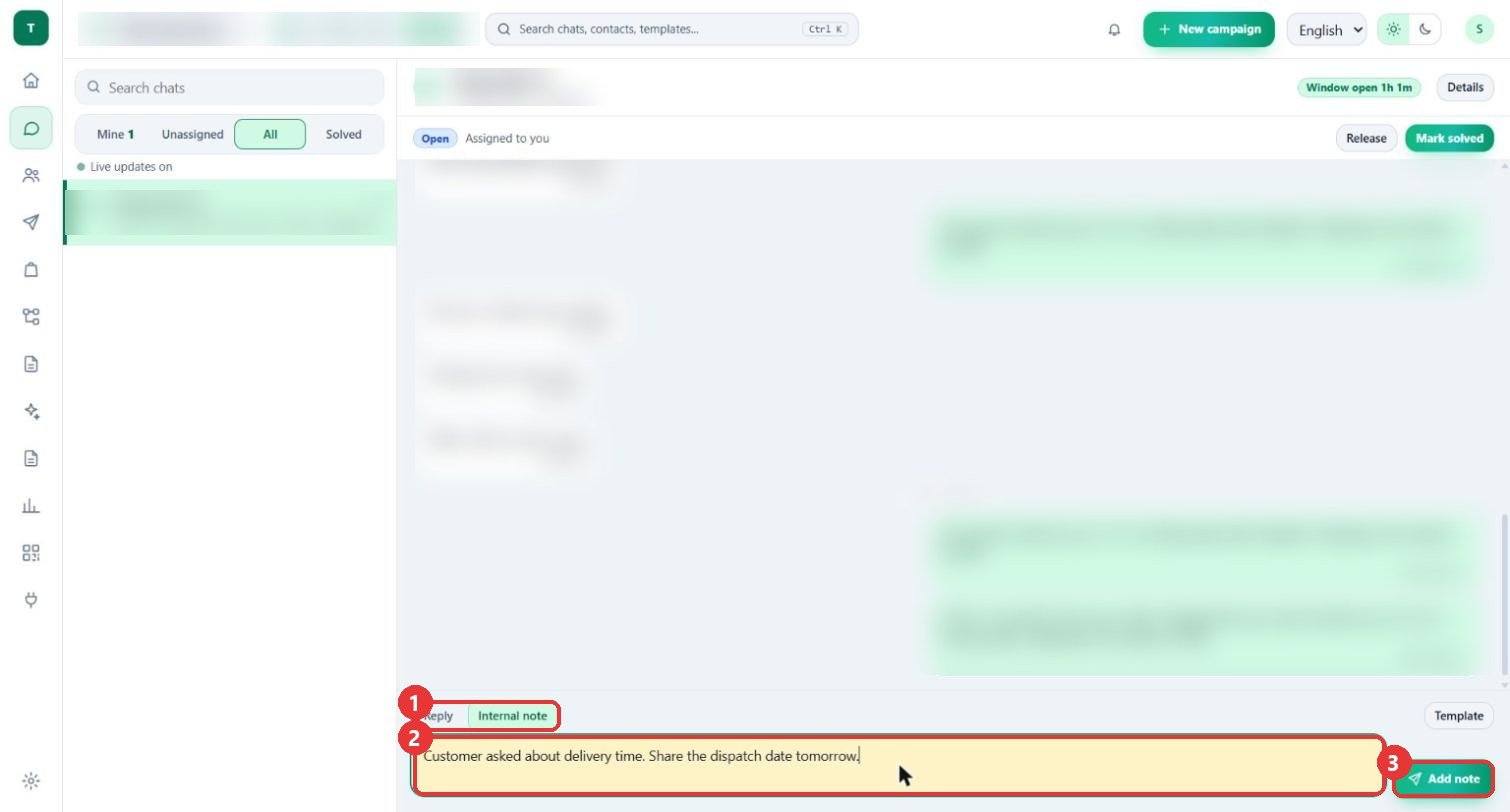
What to clickPress Internal note. The box turns yellow and the button becomes Add note. Type the note and press it.
WhyThe box asks for "a note only your team can see", so the customer never receives it. Use it to hand over what you know.
Use case"Customer asked about delivery time. Share the dispatch date tomorrow."
5
Check the contact, then finish
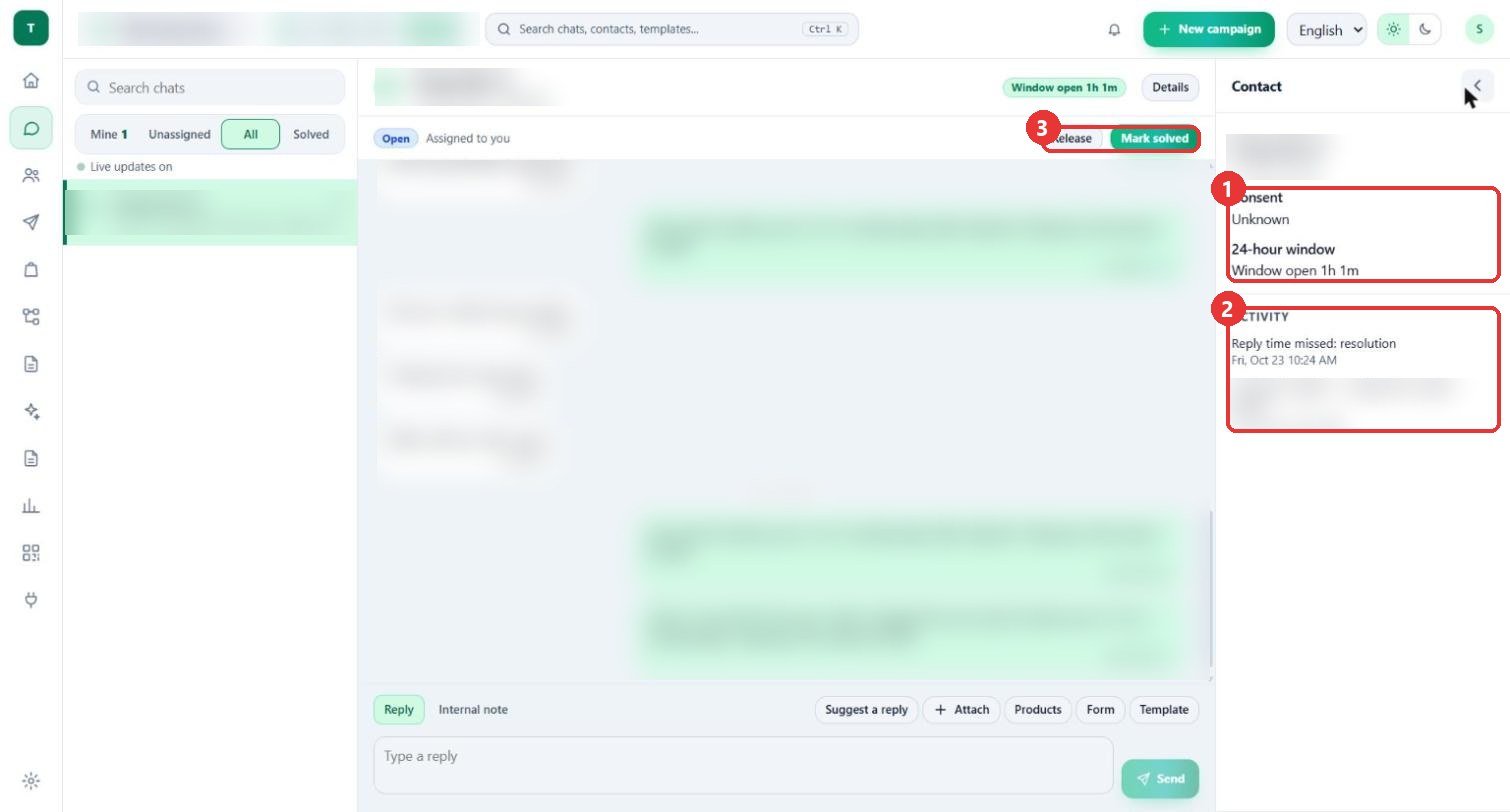
What to clickPress Details to open the Contact panel: Consent, the 24-hour window and the Activity list. When the customer is helped press Mark solved. Release hands the chat back.
WhyCheck Consent before a marketing message: the template picker warns that a person who has not agreed to marketing should get a utility template or be asked for consent first.
Use caseA customer who has not agreed gets an order update (utility), not an offer.
Good to know
- The customer's name, number, messages and the team member's name are blurred in these pictures.
- Nothing was sent or saved to make this guide: the sample note was typed and then deleted, and Suggest a reply was not pressed.
- The Template and Products dialogs open empty on this account because no template is approved and no store is connected yet.