← Threadline Social help / உதவி
Answer direct messages automatically
Someone sends you a direct message with a word like "delivery". Threadline Social answers it with a message you wrote, or prepares a draft for you to check. About two minutes to set up.
The same steps as a short video with captions (about 1 minute, no sound). In the pictures below, the red boxes marked 1 2 3 show where to look.
1
Start a rule for direct messages
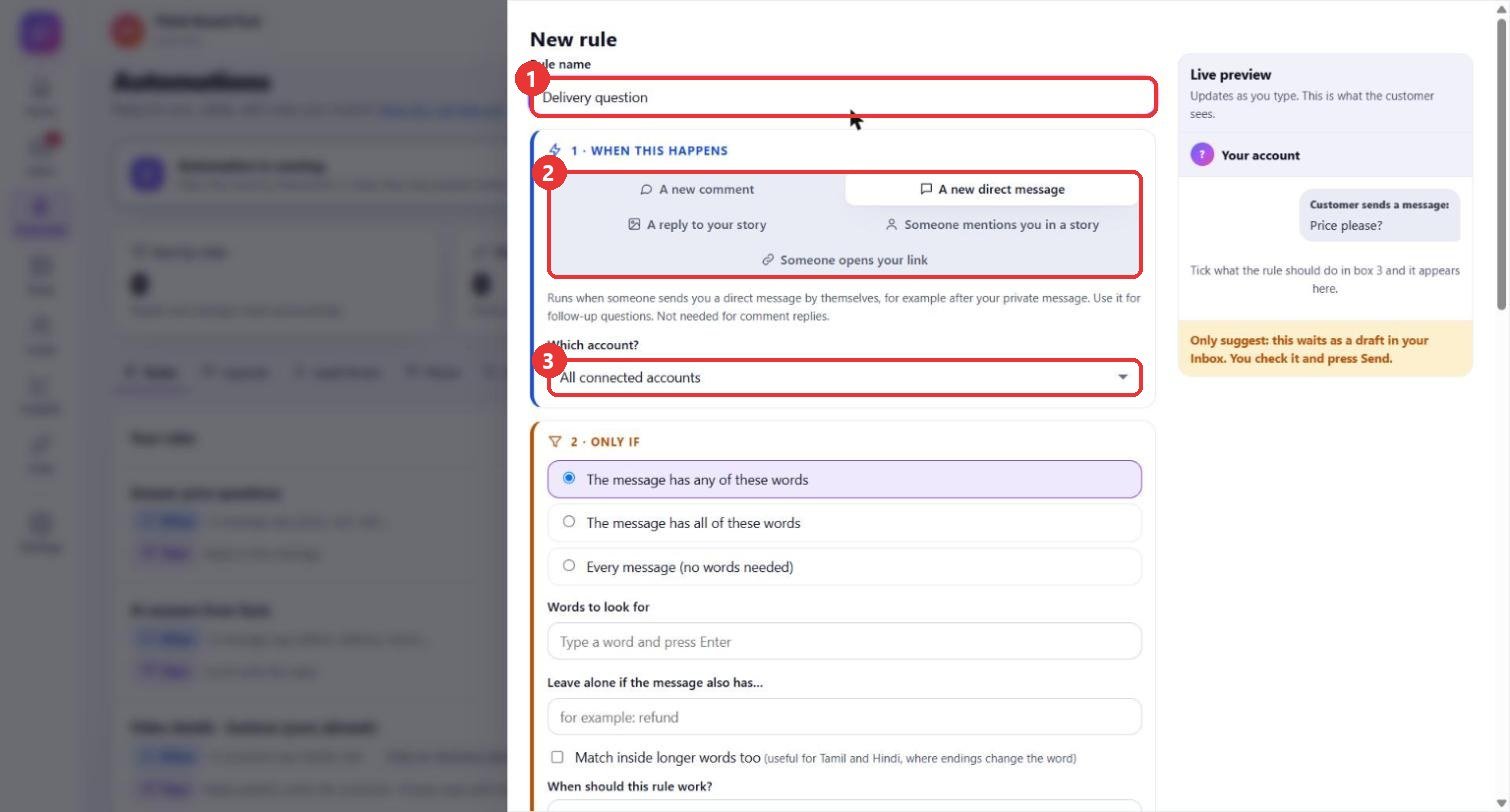
What to clickAutomate > New rule. Type a name. Under 1 - When this happens choose A new direct message. Under Which account? choose one account, or keep "All connected accounts".
WhyThis rule runs when someone sends you a direct message by themselves, for example after your private message or after seeing a post. It is not needed for comment replies: a comment rule already sends both the public reply and the private message.
Use caseName it after the question it answers, for example "Delivery question".
2
Type the words people write
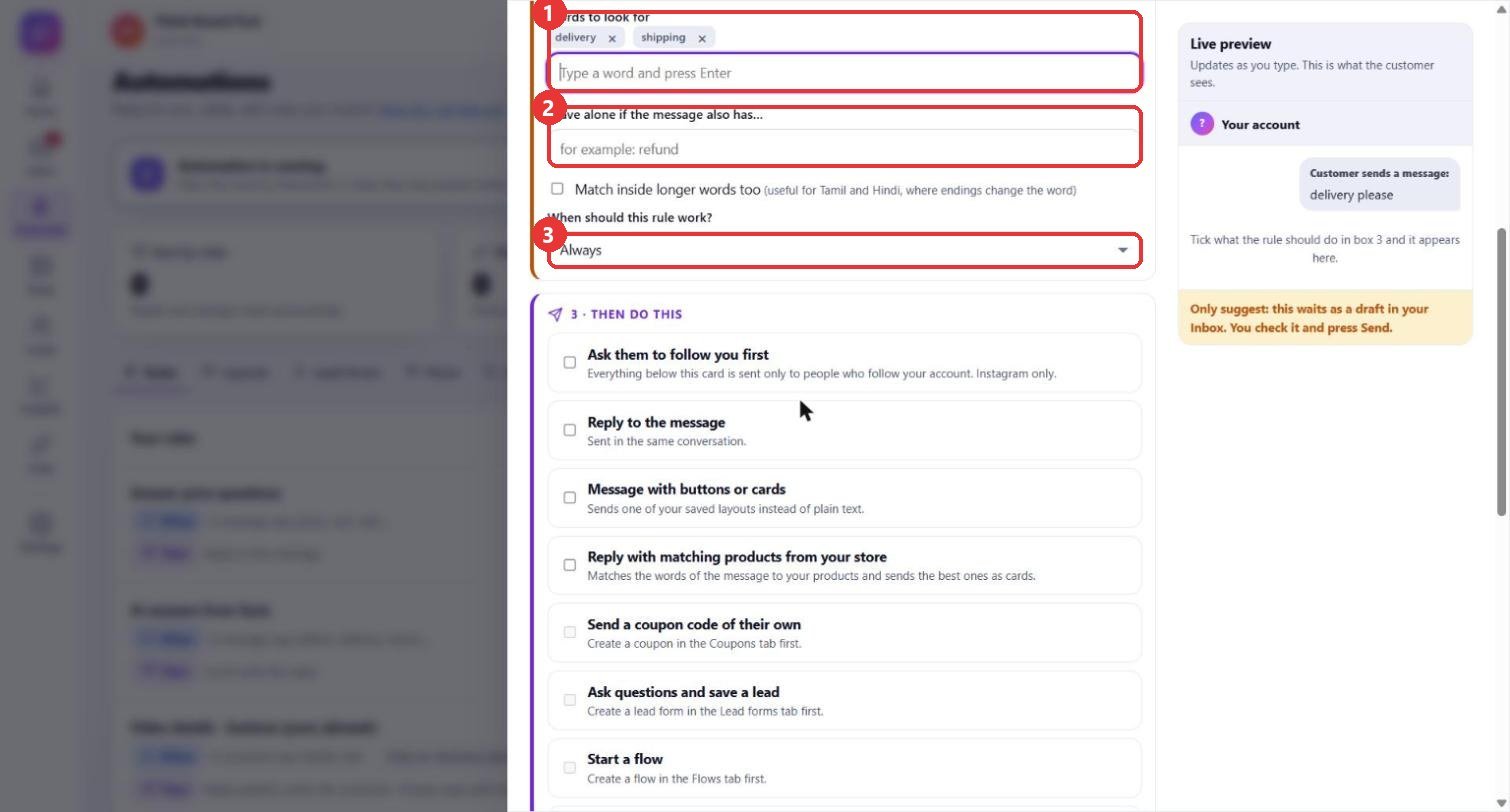
What to clickUnder 2 - Only if, type a word in Words to look for and press Enter. Add more. Use Leave alone if the message also has for words that should stop the rule. When should this rule work? lets you limit when the rule is active.
WhyThe rule answers only messages that contain your words. A message that also has a stop word (like "refund") is left to a person, so an angry customer never gets a canned answer.
Use caseWords: delivery, shipping, courier. Leave alone if: refund, complaint, damaged.
3
Choose what the rule does
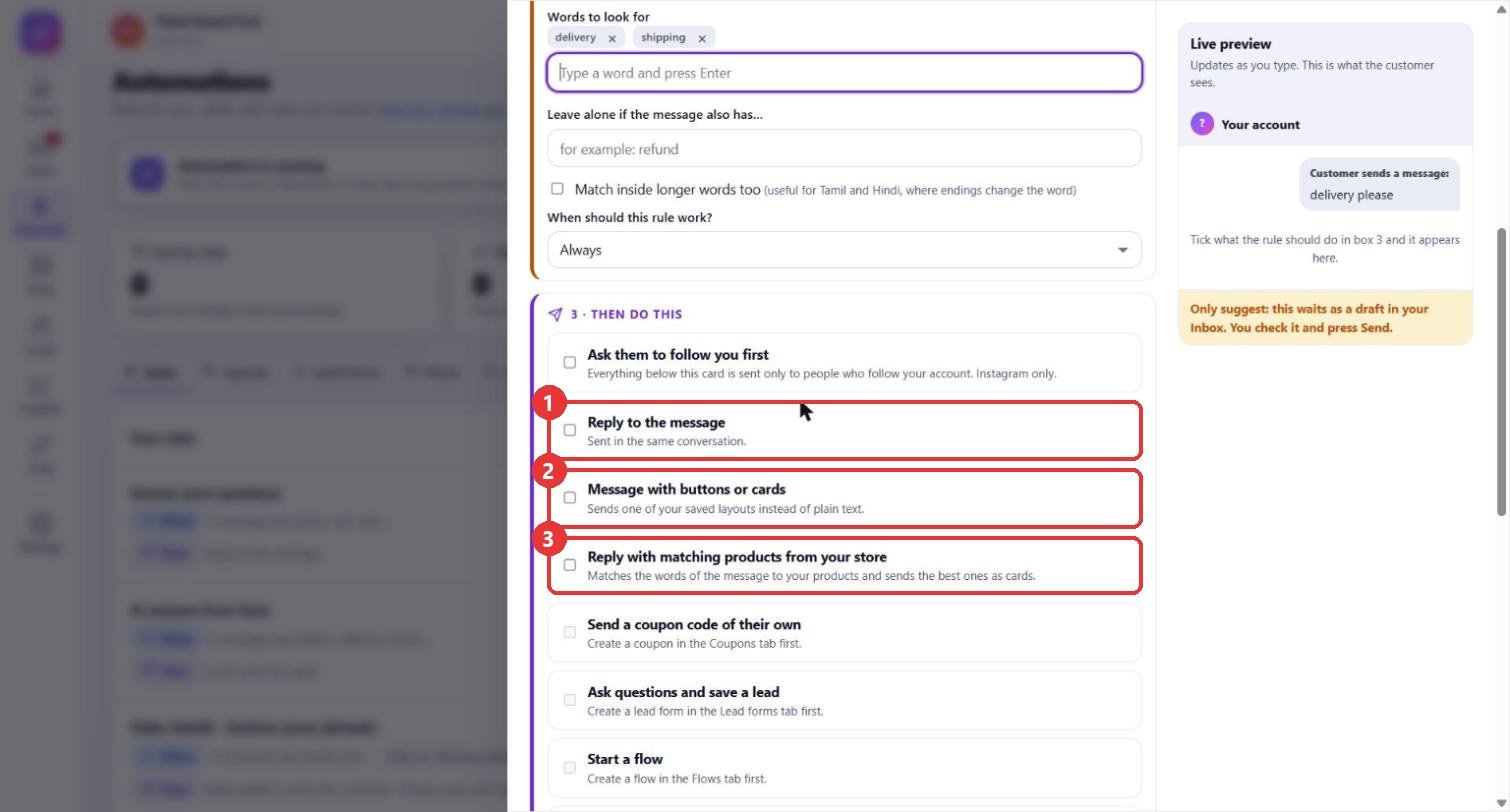
What to clickUnder 3 - Then do this tick what should happen. You can tick several: Reply to the message (your own text), Message with buttons or cards (a saved layout), Reply with matching products from your store, a coupon, a lead form, a flow, Let AI write the reply, add a label, give it to a team member, save as a lead, mark it done.
WhyEach block is a small action, so one rule can answer, label and close a conversation. Blocks that need something first (coupons, forms, flows, labels) are greyed out until you create it in its tab.
Use caseA product question: tick "Reply with matching products from your store". A simple fact: tick "Reply to the message".
4
Write the reply
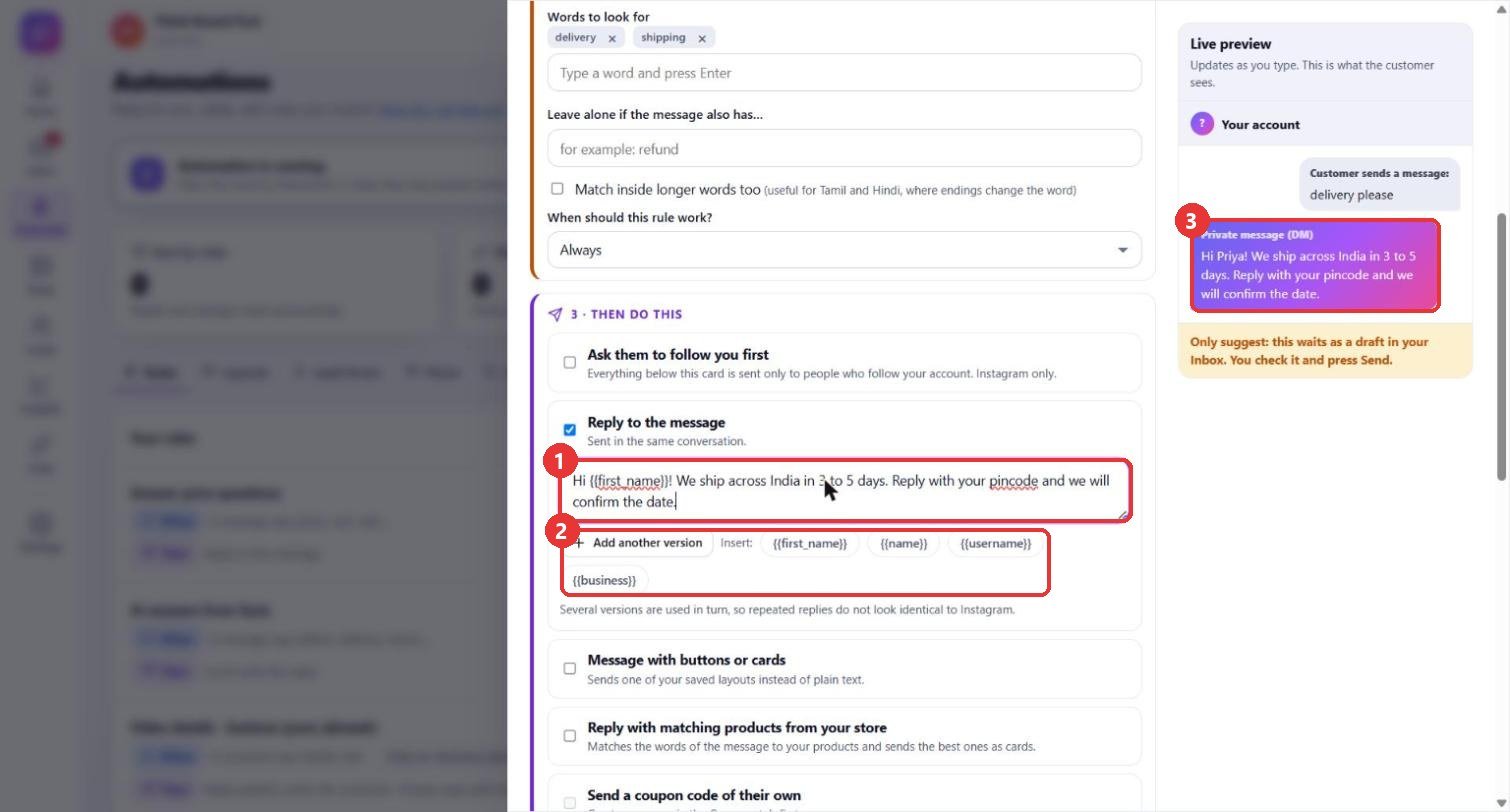
What to clickType your reply in the box. Click a chip such as {{first_name}} to put the customer's name in. Add another version writes a second wording. The Live preview on the right shows what the customer sees.
WhySeveral versions are used in turn, so repeated replies do not look identical to Instagram and the customer. The preview fills in a sample name so you can check how it reads.
Use case"Hi {{first_name}}! We ship across India in 3 to 5 days. Reply with your pincode and we will confirm the date."
5
Pick the mode and save
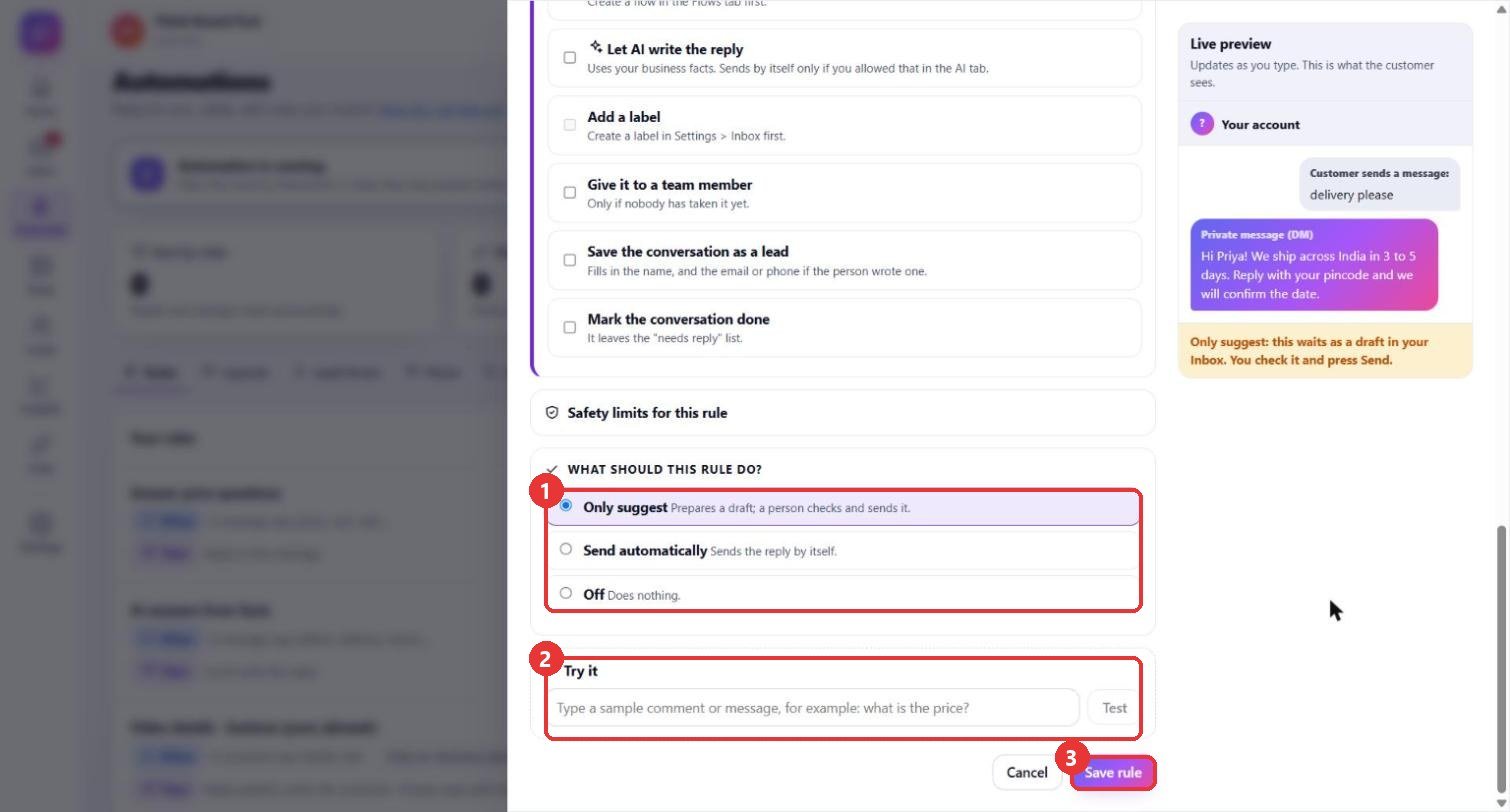
What to clickUnder What should this rule do? choose Only suggest. Type a sample message in Try it and press Test to see which rule answers. Then press Save rule.
WhyOnly suggest prepares a draft that a person checks in the Inbox and sends, which is the safe way to start. Send automatically sends the reply by itself. Off does nothing. Safety limits for this rule sets how often one person can get this reply.
Use caseRun as "Only suggest" for a day, check the drafts in the Inbox, then switch the rule to "Send automatically".
Good to know
- Rules are checked from the top and the first matching rule answers. Use the arrows beside a rule to reorder.
- Automate > Activity shows every reply with the reason it was sent.
- A conversation gets at most 8 automatic replies in 24 hours, and people who write "stop" are left alone (the Safety tab).
- No account is named in these pictures; the dark area behind the panel is your own Automations page, blurred.