← Threadline Social help / உதவி
Reply to customers in the Inbox
Every comment and direct message from Instagram and Facebook arrives in one place. Find the conversation, read it, reply, hand it over and mark it done. About two minutes to learn.
The same steps as a short video with captions (about 1 minute, no sound). In the pictures below, the red boxes marked 1 2 3 show where to look. Names and messages of customers are blurred.
1
Find the conversation
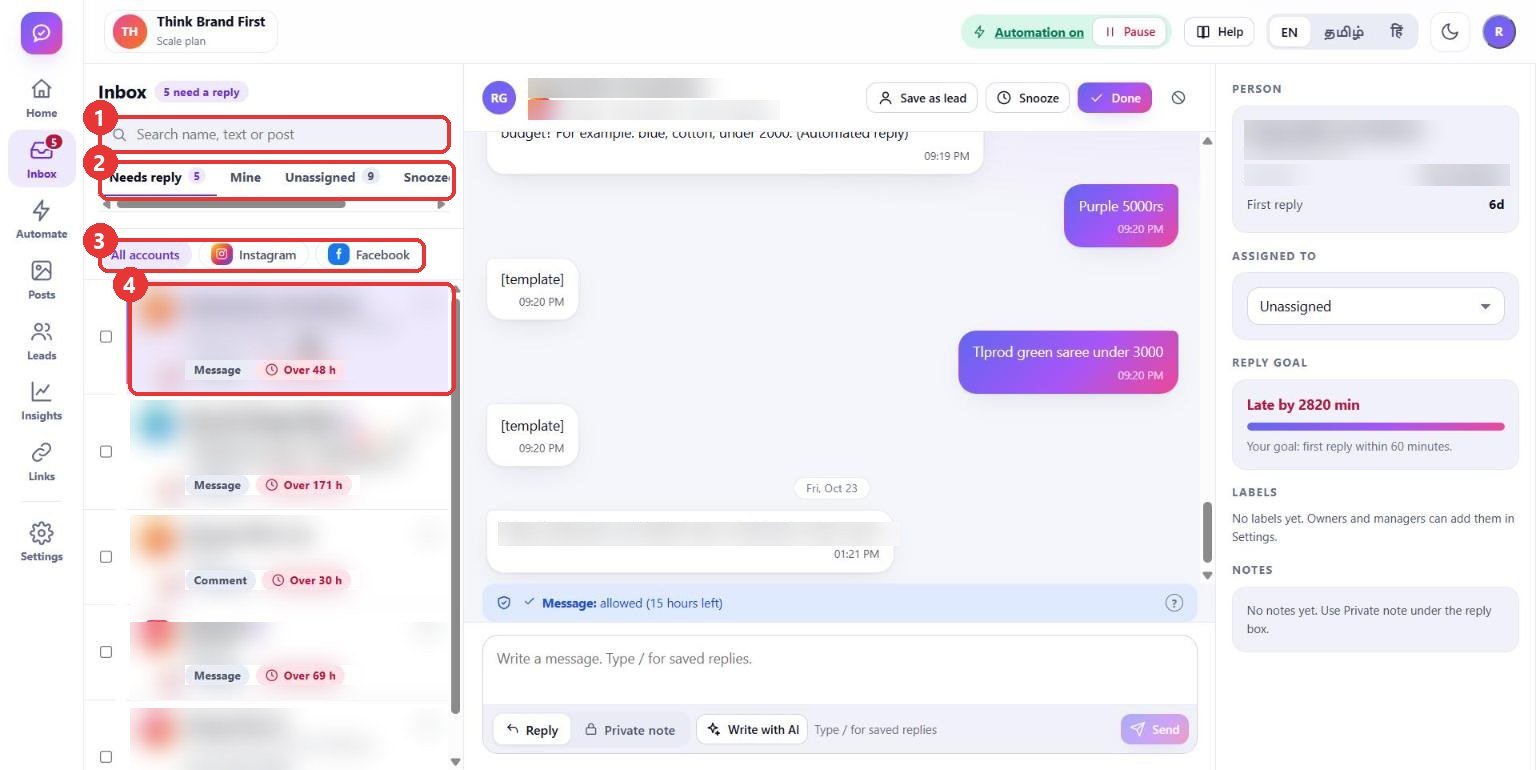
What to clickLeft menu: Inbox. Pick a tab (Needs reply, Mine, Unassigned, Snoozed), filter by Instagram or Facebook, or type a name or word in the search box. Click a conversation.
Why"Needs reply" lists the people still waiting for an answer, with the time they have waited. You work from the top and nothing is missed.
Use caseStart every day on "Needs reply". The red "Over 48 h" tag shows who has waited longest.
2
Read the conversation
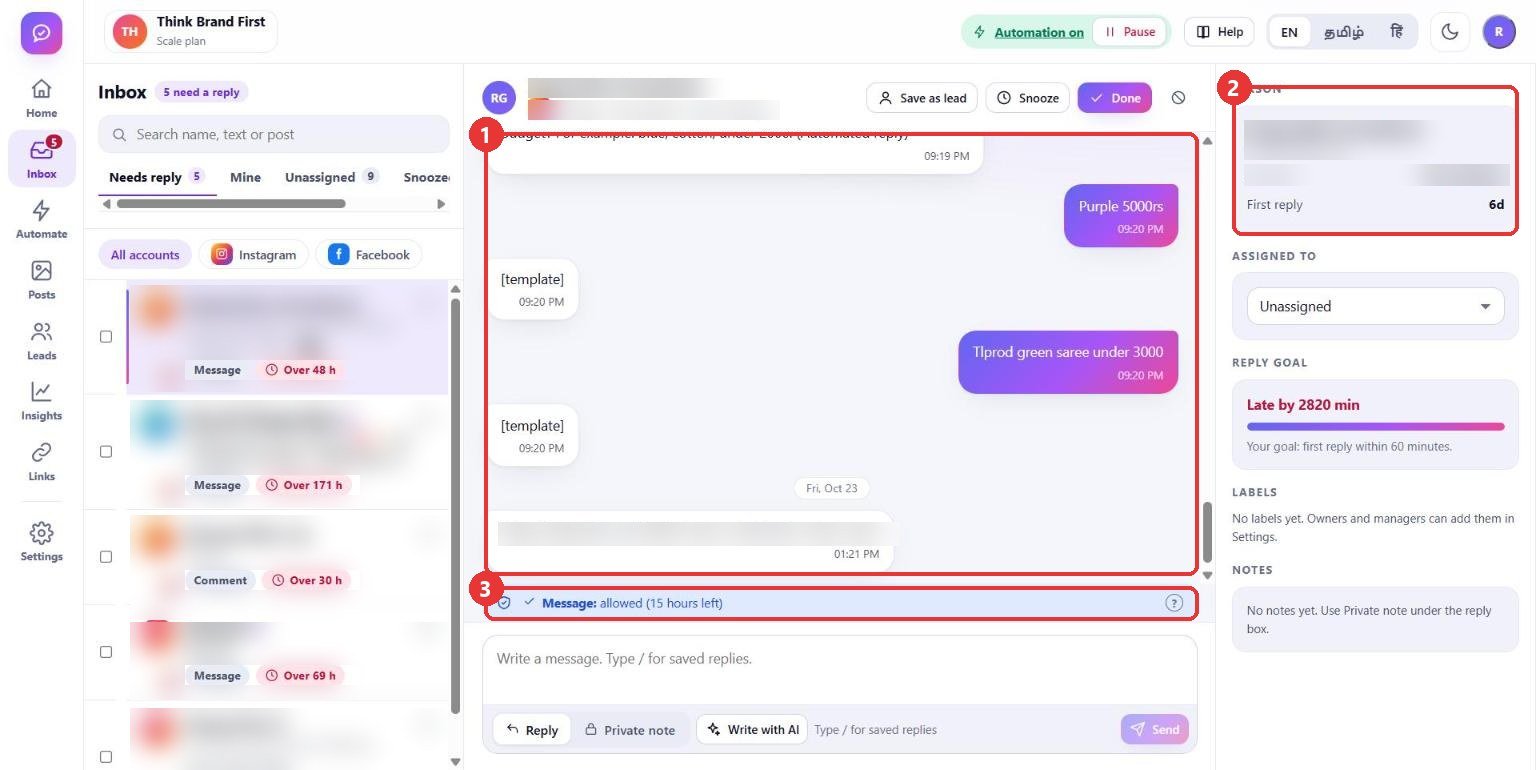
What to clickRead the messages in the middle. The panel on the right shows who the person is. The blue line under the messages says whether you may still reply.
WhyInstagram and Facebook allow a reply only for a limited time after the customer's last message. The blue line shows the hours left, so you know if a normal reply is still possible.
Use case"Message: allowed (15 hours left)" means you can reply now. If the time is over, the line says so and the reply box is closed.
3
Write your reply
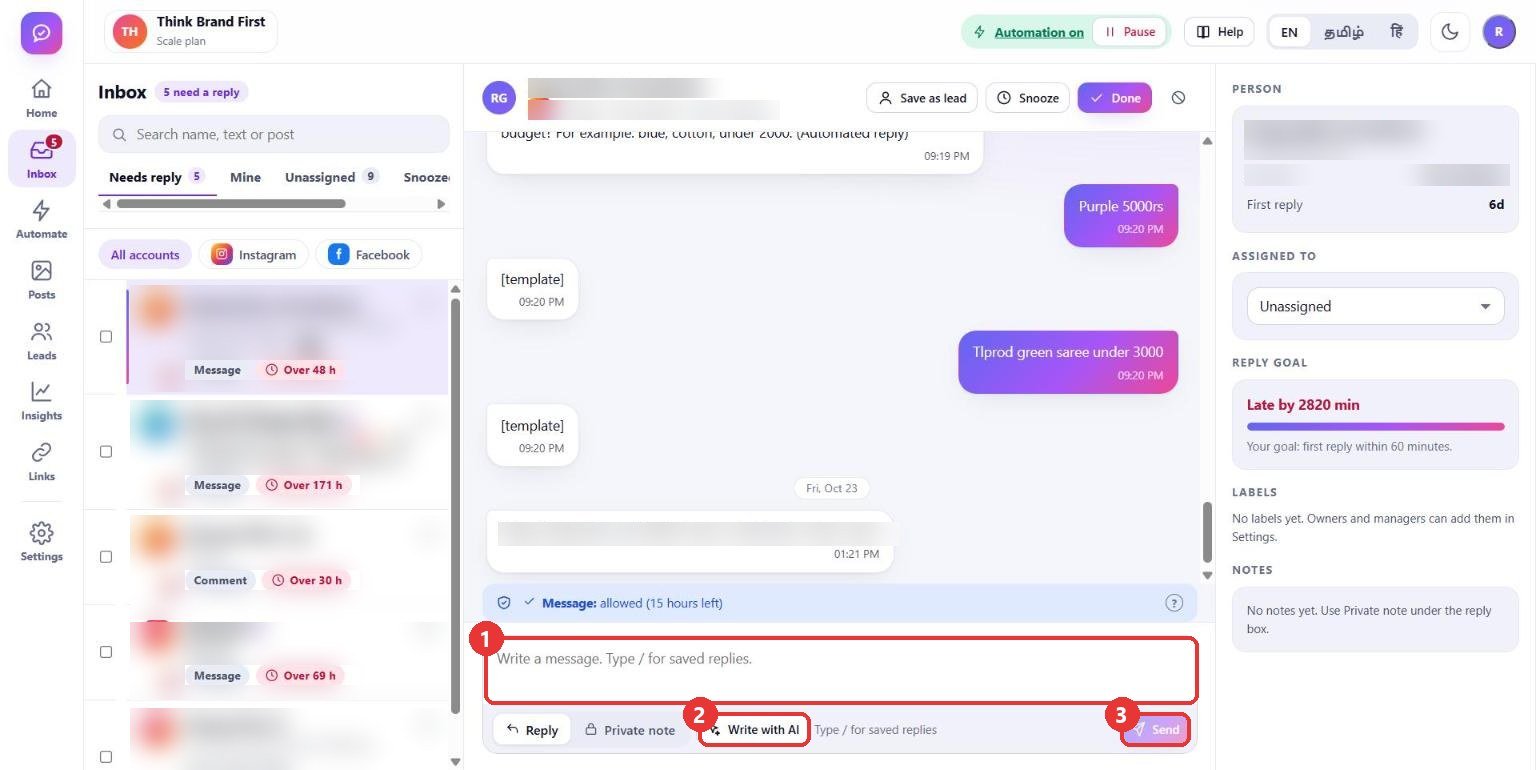
What to clickClick the box, type the reply and press Send. Write with AI drafts a reply from your business facts that you can edit first. Typing / opens your saved replies.
WhyAI drafts and saved replies save typing, and you still read every reply before it goes out. Nothing is sent until you press Send.
Use caseA customer asks about delivery: press "Write with AI", read the draft, fix the price or date, then Send.
4
Hand over, label or leave a note
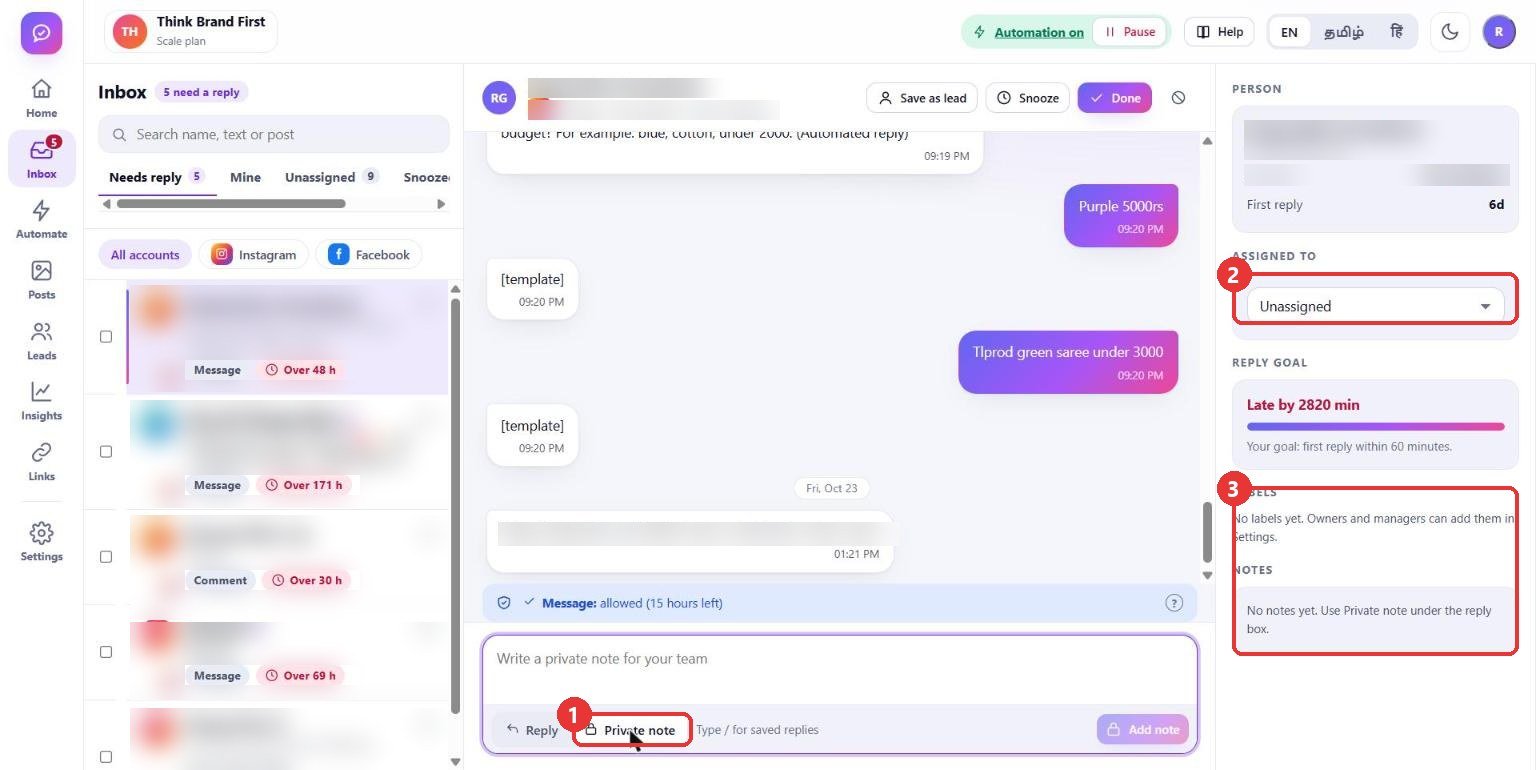
What to clickPrivate note is a tab above Send: your team sees the note, the customer never does. On the right, choose a person under Assigned to, and add labels or notes.
WhyWhen two or more people use the inbox, assigning stops two of you answering the same customer, and notes carry the context to the next person.
Use caseA refund question comes in: assign it to the owner and write a private note "customer has paid, check courier".
5
Finish the conversation
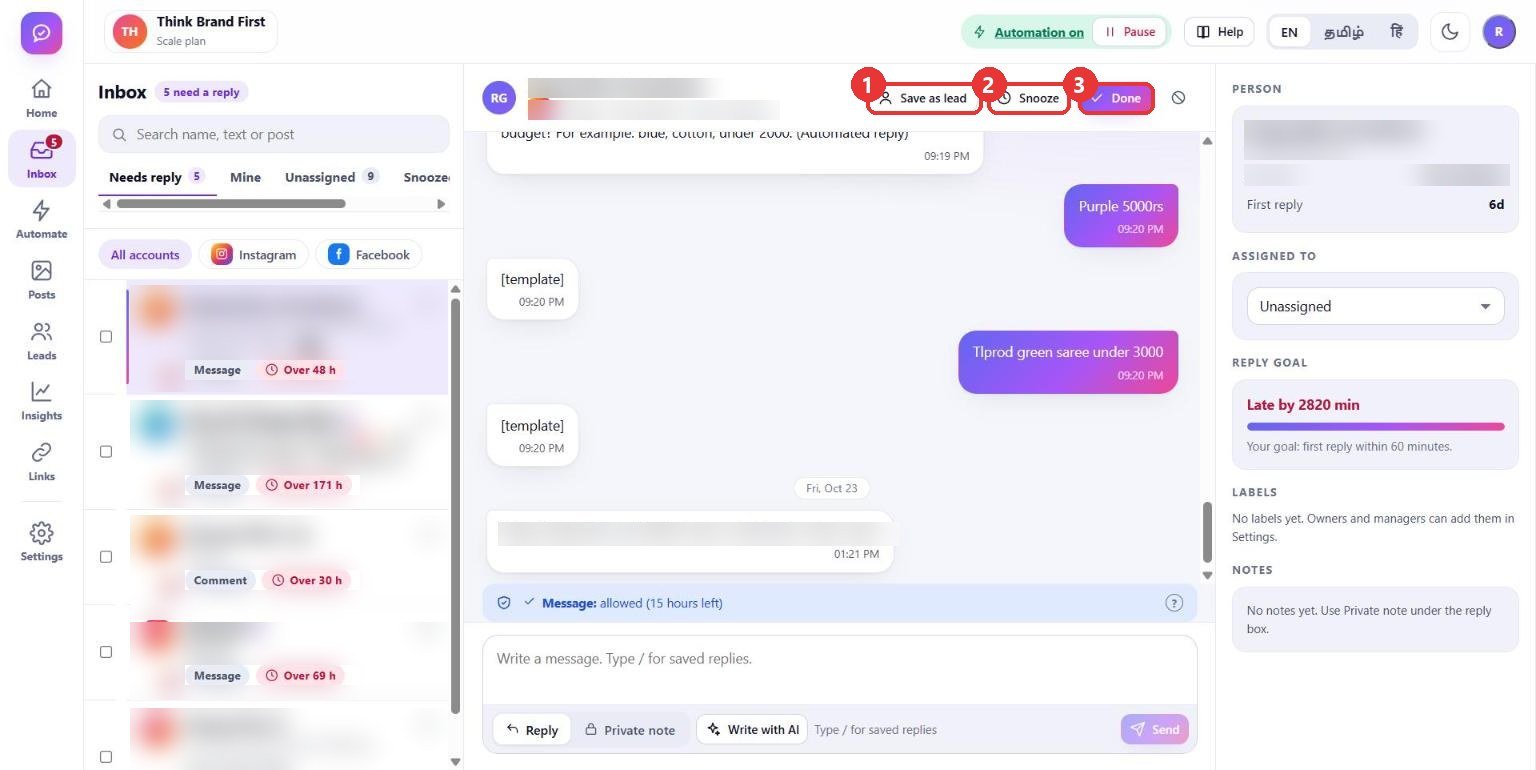
What to clickDone removes the conversation from "Needs reply". Snooze hides it until the time you choose. Save as lead adds the person to Leads.
WhyA clean "Needs reply" list is your to-do list. Done and Snooze keep it honest, and Save as lead keeps buyers you want to follow up.
Use caseThe customer got the answer: press Done. A buyer said "I will order on Friday": Snooze until Friday, or Save as lead.
Good to know
- Keys: j and k move between conversations, e marks the conversation done.
- Automatic replies from your rules also appear here, marked "(Automated reply)".
- Labels, your reply goal and saved replies are set in Settings.