
SET UP YOUR ACCOUNT
Connect your number and your store.
The same steps are inside the app, on the Settings page (numbers) and the Integrations page (stores), in English, Tamil and Hindi. Stuck anywhere? Book a short call and we will do it with you.
Prefer to watch? Short video guides, in English and Tamil →
1. Connect your WhatsApp number
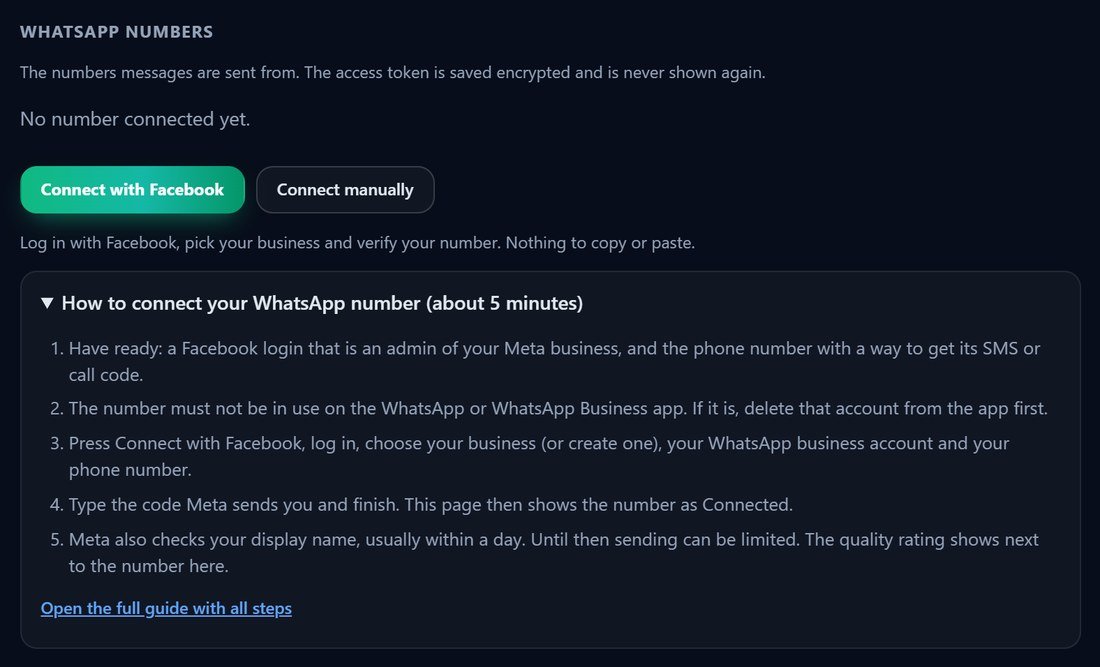
About 5 minutes. In the app: Settings, Numbers.
The easy way: Connect with Facebook
- Have ready a Facebook login that is an admin of your Meta business, and the phone number with a way to get its SMS or call code.
- The number must not be in use on the WhatsApp or WhatsApp Business app. If it is, delete that account from the app first.
- Press Connect with Facebook, log in, choose your business (or create one), your WhatsApp business account and your phone number.
- Type the code Meta sends you and finish. The Settings page then shows the number as Connected.
- Meta also checks your display name, usually within a day. Until then sending can be limited. The quality rating shows next to the number.

Or connect manually
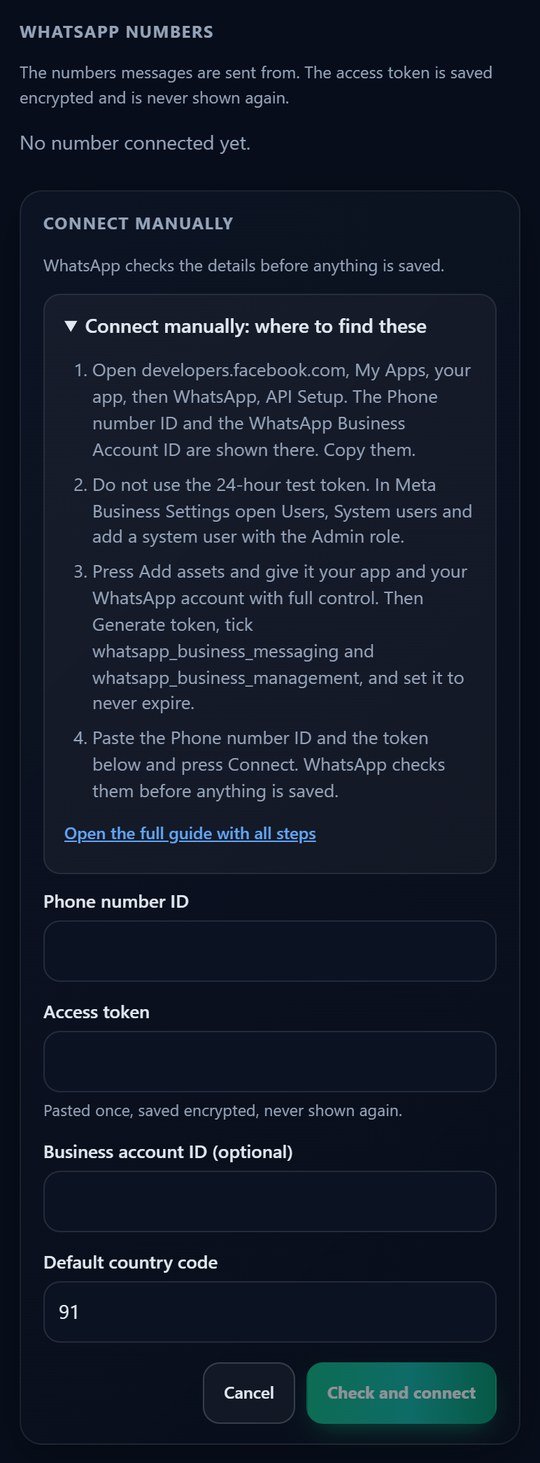
- Open
developers.facebook.com, My Apps, your app, then WhatsApp, API Setup. The Phone number ID and the WhatsApp Business Account ID are shown there. Copy them. - Do not use the 24-hour test token. In Meta Business Settings open Users, System users and add a system user with the Admin role.
- Press Add assets and give it your app and your WhatsApp account with full control. Then Generate token, tick
whatsapp_business_messagingandwhatsapp_business_management, and set it to never expire. - In the app press Connect manually, paste the Phone number ID and the token and press Connect. WhatsApp checks them before anything is saved, and the token is stored encrypted and never shown again.

On your phone

2. Connect a Shopify store
So orders, payments and shipments reach your chats and campaigns. In the app: Integrations, Online stores, Connect a store.

Step 1: get the signing secret
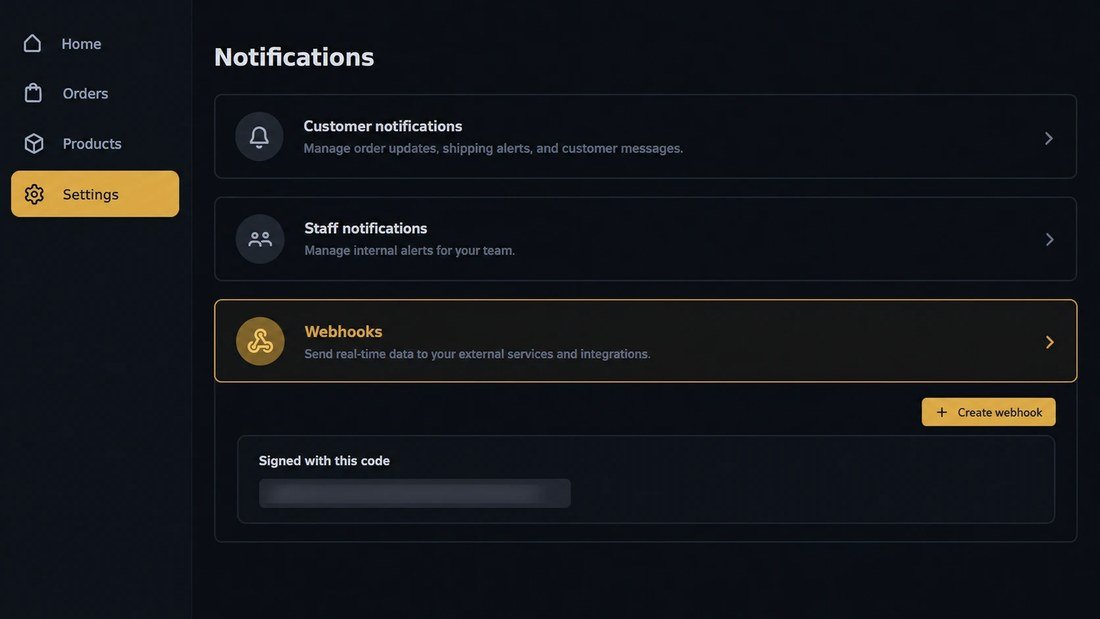
- In your Shopify admin open Settings, then Notifications.
- Scroll to the Webhooks part. At the bottom it says your webhooks will be signed with a long code. Copy that code.
- In the app pick Shopify, give the store a name, paste the code into Signing secret from the store and press Connect store. The next step appears under the store.

Step 2: tell Shopify where to send orders
- Copy the address the app shows under your store.
- In Shopify open Settings, Notifications, Webhooks and press Create webhook.
- Make one webhook for each of these events: Order creation, Order payment, Order fulfillment. For left-behind cart messages also add Checkout creation and Checkout update.
- For each: Format JSON, URL is the address you copied, API version the latest one. Save.
- Place one small test order with your own WhatsApp number, then press Check again in the app. "Nothing received yet" turns into a time when it works.


On your phone


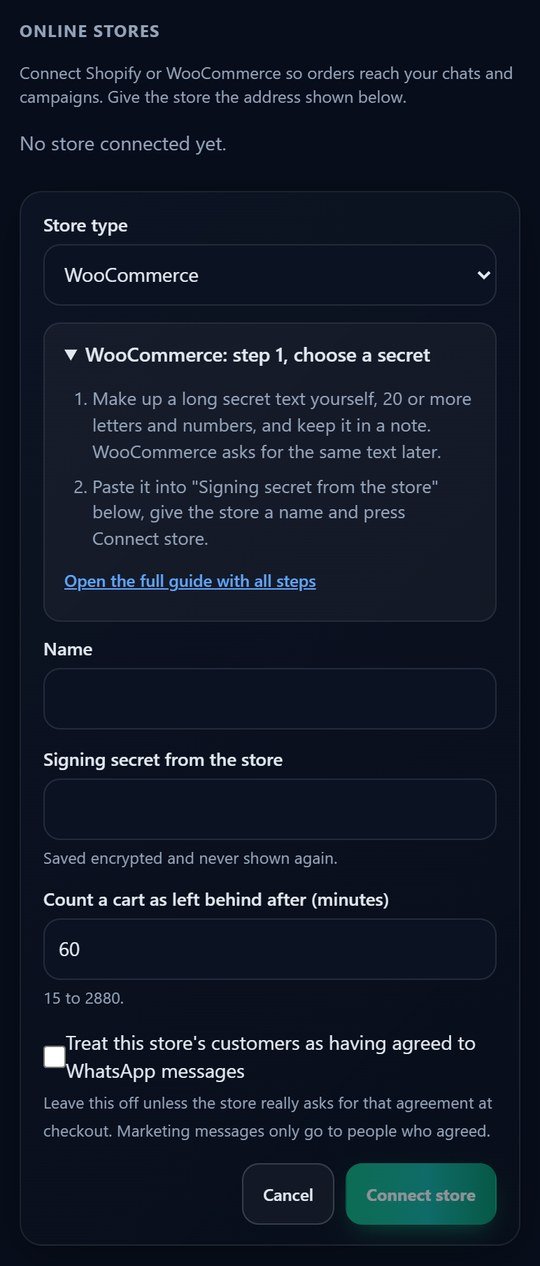
3. Connect a WooCommerce store
In the app: Integrations, Online stores, Connect a store.

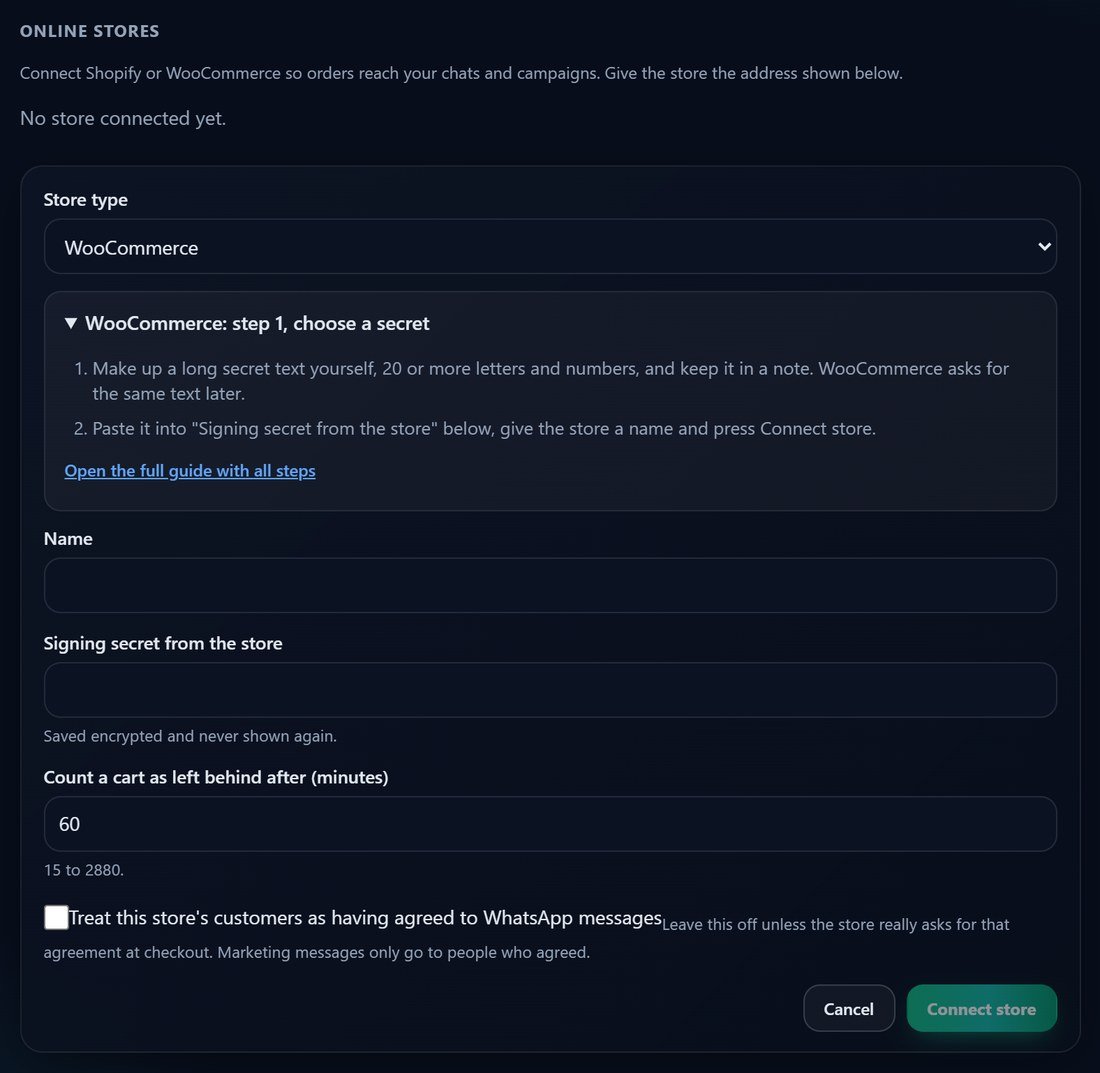
Step 1: choose a secret
- Make up a long secret text yourself, 20 or more letters and numbers, and keep it in a note. WooCommerce asks for the same text later.
- In the app pick WooCommerce, give the store a name, paste the text into Signing secret from the store and press Connect store.
Step 2: tell your store where to send orders
- Copy the address the app shows under your store.
- In WordPress open WooCommerce, Settings, Advanced, Webhooks and press Add webhook.
- Make two webhooks: one with Topic Order created and one with Topic Order updated. Status Active for both.
- For each: Delivery URL is the address you copied, Secret is the text you chose, API version WP REST API v3 (or the newest). Save.
- Place one small test order with your own WhatsApp number, then press Check again in the app.

On your phone

Follow your progress
On the Dashboard, the Finish setting up box ticks each step by itself: connect a number, receive a message, add contacts, get a template approved, send your first broadcast. Connecting an online store is listed too, but it is optional and never blocks the list.

Another kind of website?
Shopify, WooCommerce and Bagisto connect directly. For any other site, put the WhatsApp chat button on it from Settings, and use the API keys or webhooks tabs for your own links. If you are not sure which fits, ask us.